
MCP server Screen Browser
Commit 13 de nov. de 2026Permite que agentes de codificação gravem vídeos de demonstração e tutoriais narrados de aplicações web seguindo guias de passo a passo gerados automaticamente.
Também conhecido como screenbrowser/skill, skill
- Stars
- 3
- Ferramentas
- —
- Downloads, 30 dias
- —
- Versão mais recente
- 1.3.18
- Último commit
- 13 de nov. de 2026
- Licença
- MIT
O que é o MCP Screen Browser?
Screen Browser é um MCP server. Permite que agentes de codificação gravem vídeos de demonstração e tutoriais narrados de aplicações web seguindo guias de passo a passo gerados automaticamente.
Resumo gerado a partir do README do projeto
Sobre o MCP server de Screen Browser
O Screen Browser permite que agentes de codificação gerem tutoriais em vídeo narrados e demonstrações de aplicações web. Ao ler um codebase local, um agente pode escrever guias de passo a passo que utilizam o texto real de botões e campos. O servidor então grava uma sessão real de navegador seguindo essas instruções em uma URL publicada, produzindo um arquivo MP4 completo com legendas, capítulos e efeitos na tela.
Este serviço funciona com vários clientes MCP, incluindo Claude Code, Cursor, Codex e GitHub Copilot. Os usuários podem se autenticar via um fluxo OAuth baseado em navegador ou fornecendo uma API key como um bearer token. O servidor está hospedado em mcp.screenbrowser.com e gerencia tarefas como criação de projetos, upload de guias, início de execuções e busca de vídeos finalizados. Ele suporta gravações para diferentes dispositivos como iPhone, Android ou iPad em várias proporções de tela.
Para usar isso, você deve fornecer uma URL publicada e uma conta de usuário de demonstração que utilize autenticação por e-mail e senha. O agente lê seu repositório localmente para entender a UI, mas envia apenas o texto do guia gerado para o servidor. Os vídeos têm um limite de cinco minutos de duração.
O que você pode fazer com ele
- 1Gerar tutoriais de funcionalidadesPeça ao seu agente de codificação para criar um vídeo de passo a passo de uma nova funcionalidade específica em sua aplicação.
- 2Automatizar atualizações de documentaçãoQuando o código da sua aplicação muda, você pode atualizar rapidamente seus guias de vídeo editando apenas uma única linha.
- 3Validar etapas do passo a passoVerifique as instruções escritas de um guia gratuitamente antes de se comprometer com uma gravação de vídeo completa.
Escrito a partir do README do projeto. Cada caso de uso é verificado com uma citação dele.
Como instalar o MCP Screen Browser
Formatos verificados em 10 nov 2026Adicionar ao CursorAdicionar ao GooseInstalar o MCP Screen Browser no Claude Code
$ claude mcp add --transport http skill https://mcp.screenbrowser.com/Instalar o MCP Screen Browser no Cursor
~/.cursor/mcp.json
{
  "mcpServers": {
    "skill": {
      "url": "https://mcp.screenbrowser.com/"
    }
  }
}Instalar o MCP Screen Browser no VS Code
.vscode/mcp.json
{
  "servers": {
    "skill": {
      "type": "http",
      "url": "https://mcp.screenbrowser.com/"
    }
  }
}Instalar o MCP Screen Browser no VS Code CLI
$ code --add-mcp '{"name":"skill","type":"http","url":"https://mcp.screenbrowser.com/"}'Instalar o MCP Screen Browser no Codex
$ codex mcp add skill --url https://mcp.screenbrowser.com/Instalar o MCP Screen Browser no Codex config.toml
~/.codex/config.toml
[mcp_servers.skill]
url = "https://mcp.screenbrowser.com/"
Instalar o MCP Screen Browser no Gemini CLI
$ gemini mcp add -s user --transport http skill https://mcp.screenbrowser.com/Instalar o MCP Screen Browser no Gemini settings.json
~/.gemini/settings.json
{
  "mcpServers": {
    "skill": {
      "url": "https://mcp.screenbrowser.com/",
      "type": "http"
    }
  }
}Verificações automatizadas
Executado em 14 de nov. de 2026Relatório completo →Ainda não verificado. Um servidor precisa de uma pontuação de 80, nenhum problema grave e dados suficientes para verificarmos. Como as verificações funcionam · O que corrigir para ganhar mais pontos

- Repositório de origem vinculado e acessívelscreenbrowser/skill is public and reachablegithub.com/screenbrowser/skill ↗Passou
- O pacote indica este repositório como sua origemNão verificado
- Proveniência da build (atestação Sigstore)Não verificado
- Licença de código aberto (OSI)MITspdx.org/licenses/MIT.html ↗Passou
- Commit ou release no último anoLast commit or release 2026-11-13github.com/screenbrowser/skill ↗Passou
- OpenSSF ScorecardNão verificado
- Nome do pacote não é próximo a um pacote popularNão verificado
- Nenhum aviso crítico no pacote ou em suas dependênciasNão verificado
- Sem instruções ocultas para o modelo0 tool descriptions and the README read; no override phrases, credential paths or hidden charactersPassou
- Ferramentas destrutivas estão rotuladasNão verificado
- O endpoint remoto responde ao handshake do MCPHTTPS endpoint answered 401 (sign-in required)Passou
README
Ver no GitHubScreen Browser skill
Narrated demo and tutorial videos of your web app, from a guide or your coding agent.
Ask the agent that knows your codebase for a tutorial video of a feature. It writes the walkthrough in the words your buttons and fields use, Screen Browser records a real browser following it against your deployed app, narrates it, adds the on-screen effects, and the agent hands you the MP4 with a GIF, subtitles and chapters. When the app changes, edit a line and ask again.
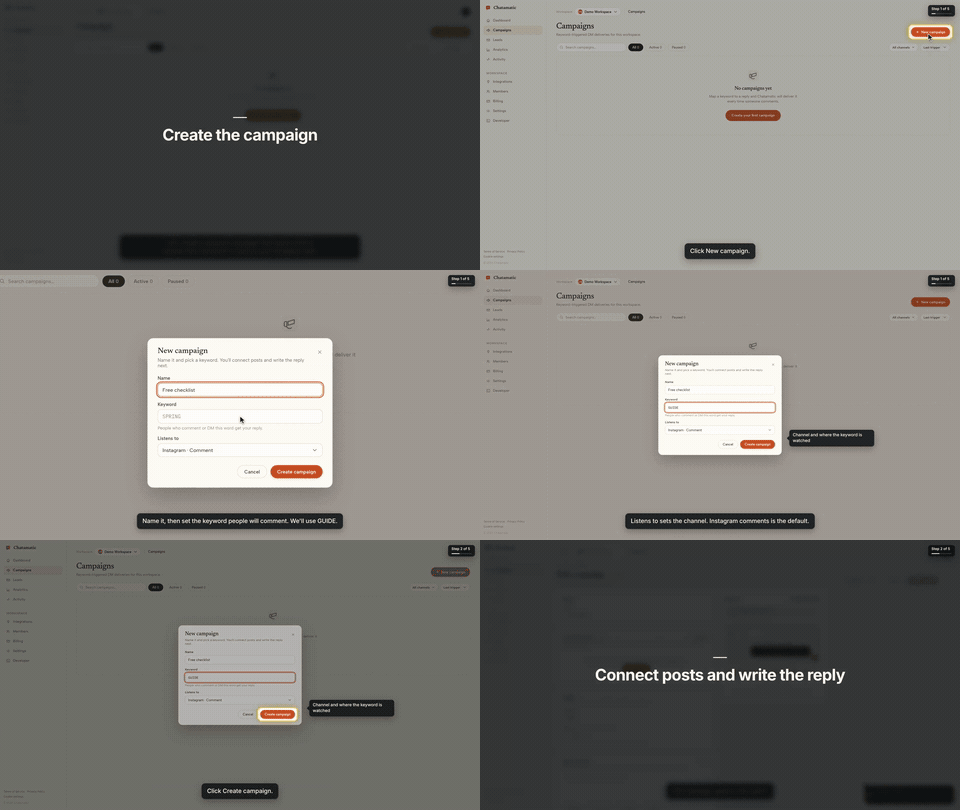
That is the first chapter of a 66-second video made from the request "make a tutorial video of creating a campaign". The whole session, from that sentence to the finished video with the exact prompt and every screen along the way, is in the Claude Code guide.
This repository gives your agent two things:
- The
screenbrowserskill — how to read your codebase and write the two guides Screen Browser needs (the login flow and the walkthrough), which effect fits which moment, how to check a guide for free before recording, and how to review the video before handing it over. - The MCP server configuration — the tools the agent calls: create the project, upload guides,
check them, start the run, poll it, fetch the video. The server itself is part of your Screen
Browser account at
https://mcp.screenbrowser.com.
Claude Code, Codex, Cursor or any MCP client can use it. Sign-in happens in the browser; there is no key to paste.
Install (Claude Code)
Add this repository as a plugin marketplace and install the plugin:
claude plugin marketplace add screenbrowser/skill
claude plugin install screenbrowser@screenbrowser
The first time the agent reaches for a Screen Browser tool, Claude Code opens your browser: sign in
to Screen Browser, approve the connection, and you are done. Nothing to copy. (If it does not
prompt, run /mcp and pick screenbrowser → Authenticate.)
Without the plugin system, register the server yourself and copy the skill:
claude mcp add --transport http screenbrowser https://mcp.screenbrowser.com
cp -r skills/screenbrowser ~/.claude/skills/
With an API key instead
If your agent cannot open a browser to sign in, create a key under Settings → API keys in Screen Browser and pass it as a bearer token:
claude mcp add --transport http screenbrowser https://mcp.screenbrowser.com \
  --header "Authorization: Bearer <your API key>"
Any MCP client works the same way: Streamable HTTP at https://mcp.screenbrowser.com, OAuth 2.1 with
dynamic client registration for interactive sign-in, or Authorization: Bearer <key>.
Other agents
The skill is a plain SKILL.md in the open Agent Skills format, and the server is standard MCP over
HTTP, so the same two pieces work outside Claude Code.
Cursor, VS Code, GitHub Copilot and other Agent Plugins clients — this repository is also an
Agent Plugins package (plugin.json, mcp.json, skills/), so
install it as a plugin from the repository URL and sign in when the client offers. Cursor without
the plugin: add the server to .cursor/mcp.json (or the global one in Cursor settings), click
Sign in next to it, and copy the skill into .cursor/skills/:
{
  "mcpServers": {
    "screenbrowser": { "url": "https://mcp.screenbrowser.com" }
  }
}
mkdir -p .cursor/skills && cp -r skills/screenbrowser .cursor/skills/
OpenAI Codex CLI — add the server to ~/.codex/config.toml, sign in once, and copy the skill
into Codex's skills folder:
[mcp_servers.screenbrowser]
url = "https://mcp.screenbrowser.com"
codex mcp login screenbrowser
mkdir -p ~/.codex/skills && cp -r skills/screenbrowser ~/.codex/skills/
Anything else (Gemini CLI, Windsurf, a custom agent) — register an HTTP MCP server with the URL
the way that tool documents it; a client that supports OAuth will sign you in, one that does not
takes the API key as an Authorization: Bearer header. Give the agent skills/screenbrowser/SKILL.md
as instructions (paste it, or point the tool's rules file at it). The MCP server itself also carries
the guide syntax as a resource and a write-tutorial-guide prompt, so a client with MCP prompts can
work without the skill file at all.
Use
Videos can be recorded on the desktop or as a phone or tablet (device: iphone, android, ipad,
…), in a phone frame on a vertical 9:16 or widescreen 16:9 canvas or as the bare screen; one run is
one device.
Open your app's repository in Claude Code and ask:
Make a tutorial video of creating a campaign.
The agent will check credits, create the project (it will ask you for the deployed URL, a demo user, and the legal attestation), write the guides from your routes and templates, validate them, show them to you, start the run, and give you the video link a few minutes later.
The MCP server also ships a get_guide_instructions tool with the same writing rules, for clients
without this skill, a write-tutorial-guide prompt that walks any client through the same flow, and
two resources: screenbrowser://guide-syntax and screenbrowser://example-guides.
What your app needs
- A demo user that signs in with email and password: no OAuth, no 2FA, no captcha. Seed it with realistic data.
- The deployed URL to record (staging is fine) and every host the app talks to (API subdomain, auth provider, CDN). An app that only runs on your computer works through a tunnel: ngrok or Cloudflare Tunnel (how).
- Confirmation that you are allowed to record the app (yours, a client's with permission, or an internal tool).
What it sends, and where
Everything the plugin does goes to one place: the Screen Browser MCP server at
https://mcp.screenbrowser.com, over HTTPS, signed in with your Screen Browser account. The
skill itself is instructions for the agent; it runs nothing on your machine and fetches nothing.
What the agent sends to Screen Browser when you ask for a video:
- the project's settings: your app's URL, the hosts it talks to, the sign-in check, narration language and voice;
- the guides it writes from your code: plain sentences naming buttons and fields as they appear on screen. Read them before they are saved; the agent shows them to you;
- the demo user's credentials, as project variables. Screen Browser stores them encrypted, uses them only to sign in during a recording, and never returns them through any tool. Values you give the agent pass through its conversation; to keep them out of chat, set them on the project's page in the Screen Browser dashboard instead;
- run commands: start, poll, cancel, and, only if you agree, a failure report with the recorder's screenshot and logs of a run that failed on Screen Browser's side.
It never sends your source code. The agent reads your repository locally to learn the labels; only the guide text leaves the machine. Nothing is sent to any other service. What Screen Browser keeps, and for how long, is in the privacy policy.
What it costs
Plans start at $49 a month, sized in minutes of finished video. Checking a guide before recording is free, and a run that fails is not charged. Videos are capped at five minutes. There is no free plan, but the first 100 accounts get 10 free minutes with no card. Current prices are on the pricing page.
Layout
plugin.json                        Agent Plugins manifest (Cursor, VS Code, Copilot, …)
mcp.json                           Agent Plugins MCP config (the URL; sign-in is OAuth)
.claude-plugin/plugin.json         Claude Code plugin manifest
.claude-plugin/marketplace.json    lets this repo act as its own Claude Code marketplace
.mcp.json                          Claude Code MCP server config
skills/screenbrowser/SKILL.md      the skill
skills/screenbrowser/references/   guide syntax reference, worked example
examples/chatamatic/               a real auth guide + main guide pair
What a guide looks like
Plain language, one step per line, naming things as they appear on screen. Screen Browser turns it into the script — the narration, the highlights, the pacing — and resolves each step against the live page:
Go to https://app.acme.test/campaigns
"Let's create a spring promotion."
Click "New campaign"
Type "Spring promo" into the Name field
Click "Save"
Confirm text "Campaign created" is visible
Ids and name= attributes are allowed when a step needs precision; class names generated by a build
tool are refused. The full reference, including the optional effect directives, is in
skills/screenbrowser/references/guide-syntax.md.
Documentation index for AI agents
The skill carries everything an agent needs to write a guide and run a recording. For anything else — prerequisites, costs, limitations, the API — https://screenbrowser.com/llms.txt is a Markdown index of the public documentation, and https://screenbrowser.com/docs/agents/ is the reference for this integration.
Support
Issues and ideas about the skill are welcome in this repository. Anything about your account or a particular recording: use the contact form at https://screenbrowser.com/contact/.
License
MIT. Screen Browser itself is a hosted service; this repository contains only the agent-facing skill, configuration and examples.
Perguntas sobre o MCP Screen Browser
Como adiciono o MCP Screen Browser ao Claude Code?
Execute claude mcp add --transport http skill https://mcp.screenbrowser.com/ no seu terminal. Adicione --scope user para torná-lo disponível em todos os projetos.
Como adiciono o MCP Screen Browser ao Cursor?
Abra ~/.cursor/mcp.json e adicione o servidor em mcpServers, usando a configuração do Cursor mostrada na seção de instalação acima.
O servidor envia meu código-fonte para o Screen Browser?
Não, o agente lê seu repositório localmente para aprender os rótulos, mas nunca envia seu código-fonte para o serviço.
Quais são os requisitos para minha aplicação web?
Sua aplicação precisa de um usuário de demonstração com login de e-mail/senha (sem 2FA ou captcha), uma URL publicada, e todos os hosts associados (API, auth, CDN) devem estar acessíveis.
Existe um plano gratuito disponível?
Não há um plano gratuito permanente, mas as primeiras 100 contas recebem 10 minutos gratuitos, e verificar um guia antes de gravar é gratuito.