
Memungkinkan AI client untuk mengirim email, melakukan lookup IP publik, dan mengonversi dokumen lokal ke Markdown.
Juga dikenal sebagai sendsoon/ai, @sendsoon/ai
- Stars
- 6
- Tools
- —
- Unduhan, 30 hari
- —
- Versi terbaru
- 0.1.2
- Commit terakhir
- 12 Okt 2026
- Lisensi
- MIT
Apa itu SendSoon MCP?
Memungkinkan AI client untuk mengirim email, melakukan lookup IP publik, dan mengonversi dokumen lokal ke Markdown.
Ringkasan dibuat dari README proyek
Tentang SendSoon MCP server
SendSoon MCP menyediakan jembatan bagi AI client seperti Claude Desktop, Codex, dan WorkBuddy untuk berinteraksi dengan layanan eksternal. Server ini memungkinkan agent untuk melakukan tugas spesifik seperti mengirim email, mengambil informasi IP publik, dan mengonversi file lokal ke format Markdown. Anda dapat mengintegrasikan server ini ke dalam workflow yang sudah ada dengan mengonfigurasi file JSON atau TOML menggunakan command dan environment variables yang diperlukan.
Setup memerlukan API key dari SendSoon untuk melewati batasan tertentu. Meskipun tersedia trial anonim, fitur ini membatasi pengguna hanya untuk mengirim tiga email tes gratis per hari melalui satu IP publik. Untuk fungsionalitas penuh, developer harus membuat key melalui website SendSoon dan menambahkannya ke konfigurasi Anda. Server ini menggunakan npx untuk menjalankan package @sendsoon/mcp, sehingga mudah di-deploy di berbagai sistem operasi.
Apa yang bisa Anda lakukan dengannya
- 1Pengiriman Email OtomatisMinta AI agent Anda untuk mengirim pesan tertentu ke penerima lengkap dengan subject line.
- 2Pengambilan Informasi JaringanMinta detail mengenai lokasi atau penyedia layanan yang terkait dengan alamat IP tertentu.
- 3Konversi Format DokumenInstruksikan AI untuk mengubah file PDF lokal menjadi Markdown agar lebih mudah diproses.
Ditulis berdasarkan README proyek. Setiap use case diperiksa terhadap kutipan dari README tersebut.
Cara menginstal SendSoon MCP
Format diverifikasi 10 Nov 2026Tambahkan ke CursorTambahkan ke GooseInstal SendSoon MCP di Claude Code
$ claude mcp add --env 'SENDSOON_EMAIL_RECIPIENT=<SENDSOON_EMAIL_RECIPIENT>' --env 'SENDSOON_API_KEY=<YOUR_SENDSOON_API_KEY>' ai -- npx -y @sendsoon/aiInstal SendSoon MCP di Cursor
~/.cursor/mcp.json
{
  "mcpServers": {
    "ai": {
      "command": "npx",
      "args": [
        "-y",
        "@sendsoon/ai"
      ],
      "env": {
        "SENDSOON_EMAIL_RECIPIENT": "<SENDSOON_EMAIL_RECIPIENT>",
        "SENDSOON_API_KEY": "<YOUR_SENDSOON_API_KEY>"
      }
    }
  }
}Instal SendSoon MCP di VS Code
.vscode/mcp.json
{
  "servers": {
    "ai": {
      "type": "stdio",
      "command": "npx",
      "args": [
        "-y",
        "@sendsoon/ai"
      ],
      "env": {
        "SENDSOON_EMAIL_RECIPIENT": "<SENDSOON_EMAIL_RECIPIENT>",
        "SENDSOON_API_KEY": "<YOUR_SENDSOON_API_KEY>"
      }
    }
  }
}Instal SendSoon MCP di VS Code CLI
$ code --add-mcp '{"name":"ai","type":"stdio","command":"npx","args":["-y","@sendsoon/ai"],"env":{"SENDSOON_EMAIL_RECIPIENT":"<SENDSOON_EMAIL_RECIPIENT>","SENDSOON_API_KEY":"<YOUR_SENDSOON_API_KEY>"}}'Instal SendSoon MCP di Claude Desktop
claude_desktop_config.json
{
  "mcpServers": {
    "ai": {
      "command": "npx",
      "args": [
        "-y",
        "@sendsoon/ai"
      ],
      "env": {
        "SENDSOON_EMAIL_RECIPIENT": "<SENDSOON_EMAIL_RECIPIENT>",
        "SENDSOON_API_KEY": "<YOUR_SENDSOON_API_KEY>"
      }
    }
  }
}Instal SendSoon MCP di Codex
$ codex mcp add ai --env 'SENDSOON_EMAIL_RECIPIENT=<SENDSOON_EMAIL_RECIPIENT>' --env 'SENDSOON_API_KEY=<YOUR_SENDSOON_API_KEY>' -- npx -y @sendsoon/aiInstal SendSoon MCP di Codex config.toml
~/.codex/config.toml
[mcp_servers.ai]
command = "npx"
args = ["-y", "@sendsoon/ai"]

[mcp_servers.ai.env]
SENDSOON_EMAIL_RECIPIENT = "<SENDSOON_EMAIL_RECIPIENT>"
SENDSOON_API_KEY = "<YOUR_SENDSOON_API_KEY>"
Instal SendSoon MCP di Gemini CLI
$ gemini mcp add -s user -e 'SENDSOON_EMAIL_RECIPIENT=<SENDSOON_EMAIL_RECIPIENT>' -e 'SENDSOON_API_KEY=<YOUR_SENDSOON_API_KEY>' ai npx -- -y @sendsoon/aiInstal SendSoon MCP di Gemini settings.json
~/.gemini/settings.json
{
  "mcpServers": {
    "ai": {
      "command": "npx",
      "args": [
        "-y",
        "@sendsoon/ai"
      ],
      "env": {
        "SENDSOON_EMAIL_RECIPIENT": "<SENDSOON_EMAIL_RECIPIENT>",
        "SENDSOON_API_KEY": "<YOUR_SENDSOON_API_KEY>"
      }
    }
  }
}Konfigurasi
SENDSOON_EMAIL_RECIPIENTWajibRecipient address allowed for test sends.
SENDSOON_API_KEYRahasiaSendSoon API Key (ssk_live_...). Leave empty for the anonymous trial of three sends per public IP per day.
SENDSOON_API_BASE_URLOverride the SendSoon API base URL. Defaults to https://www.sendsoonai.com.
| Nama | Deskripsi | Tipe |
|---|---|---|
| SENDSOON_EMAIL_RECIPIENT | Recipient address allowed for test sends. | Wajib |
| SENDSOON_API_KEY | SendSoon API Key (ssk_live_...). Leave empty for the anonymous trial of three sends per public IP per day. | Rahasia |
| SENDSOON_API_BASE_URL | Override the SendSoon API base URL. Defaults to https://www.sendsoonai.com. |
Pengecekan otomatis
Berjalan 14 Nov 2026Laporan lengkap →Lolos checks otomatis kami. Ini bukan audit keamanan: baca kodenya dan berikan server akses paling terbatas yang dibutuhkannya. Cara kerja checks

- Source repository terhubung dan dapat dijangkausendsoon/ai is public and reachablegithub.com/sendsoon/ai ↗Lolos
- Nama paket mencantumkan repositori ini sebagai sumbernya@sendsoon/ai names sendsoon/ai as sourcenpmjs.com/package/@sendsoon/ai ↗Lolos
- Provenance build (atestasi Sigstore)No build attestation published for this releaseTidak diperiksa
- Lisensi open source (OSI)MITspdx.org/licenses/MIT.html ↗Lolos
- Ada commit atau release dalam satu tahun terakhirLast commit or release 2026-10-12github.com/sendsoon/ai ↗Lolos
- OpenSSF ScorecardTidak diperiksa
- Nama package tidak mirip dengan package populerNo popular package one edit away from @sendsoon/aiLolos
- Tidak ada advisory kritis pada paket atau dependensinya99 resolved dependencies checked; no critical advisoryosv.dev ↗Lolos
- Tidak ada instruksi tersembunyi untuk model0 tool descriptions and the README read; no override phrases, credential paths or hidden charactersLolos
- Tools yang bersifat destruktif telah diberi labelTidak diperiksa
- Endpoint remote merespons handshake MCPTidak diperiksa
README
Lihat di GitHubSendSoon AI MCP
SendSoon MCP is a Model Context Protocol (MCP) server that lets Codex, Claude, and WorkBuddy use SendSoon capabilities: send email, look up public IPs, and convert local documents to Markdown.
Configure it once, then describe tasks in natural language. You usually do not need to mention SendSoon in every prompt.
What you can do
| Tool | Purpose | Example |
|---|---|---|
send_email |
Send a single email | “Send me a test email” |
ip_lookup |
Look up public IP information | “Look up the location of 8.8.8.8” |
markitdown_convert |
Convert a local document to Markdown | “Convert this PDF to Markdown” |
Everyday examples
Send an email to user@example.com with the subject “Meeting reminder” and the body “The meeting starts at 3 PM today.”
Look up the location and ISP for 8.8.8.8.
Convert /path/to/report.pdf to Markdown and summarize the key points.
If the agent does not select a tool automatically, say:
Use the sendsoon MCP to complete this task.
Install in your AI client
The instructions below cover Codex, Claude Desktop, and WorkBuddy.
Codex
Config file: user-level ~/.codex/config.toml (macOS / Linux) or %USERPROFILE%\.codex\config.toml (Windows).
[mcp_servers.sendsoon]
command = "npx"
args = ["-y", "@sendsoon/mcp"]

[mcp_servers.sendsoon.env]
SENDSOON_API_KEY = ""
Verify: Save the file, restart Codex, and run /mcp in a chat. You should see sendsoon connected. In the desktop app, also check Settings > MCP servers.
First use: Start a new conversation and ask for a simple task (e.g. “Look up 8.8.8.8”). Approve the tool if Codex asks for permission.
Claude Desktop
Config file:
| OS | Path |
|---|---|
| macOS | ~/Library/Application Support/Claude/claude_desktop_config.json |
| Windows | %APPDATA%\Claude\claude_desktop_config.json |
You can also open Settings > Developer > Edit Config inside Claude Desktop.
{
  "mcpServers": {
    "sendsoon": {
      "command": "npx",
      "args": ["-y", "@sendsoon/mcp"],
      "env": {
        "SENDSOON_API_KEY": ""
      }
    }
  }
}
Verify: Save the file, fully quit Claude Desktop (including the system tray), then relaunch. Start a new chat and confirm sendsoon tools appear in the tools menu or settings.
First use: Claude may ask to approve tool access on the first invocation; allow it to continue.
WorkBuddy
WorkBuddy can add SendSoon by pasting the connector JSON directly in MCP Server Management.
Config file: %USERPROFILE%\.workbuddy-ai\mcp.json (Windows) or ~/.workbuddy-ai/mcp.json (macOS / Linux).
- Open WorkBuddy and go to MCP Server Management.
- Click Add MCP.
- Paste the JSON below into the editor. Fill in
SENDSOON_API_KEYif you have a Key; leave it empty for the anonymous trial. - Click Save.
{
  "mcpServers": {
    "sendsoon": {
      "command": "npx",
      "args": [
        "-y",
        "@sendsoon/mcp"
      ],
      "env": {
        "SENDSOON_API_KEY": ""
      }
    }
  }
}
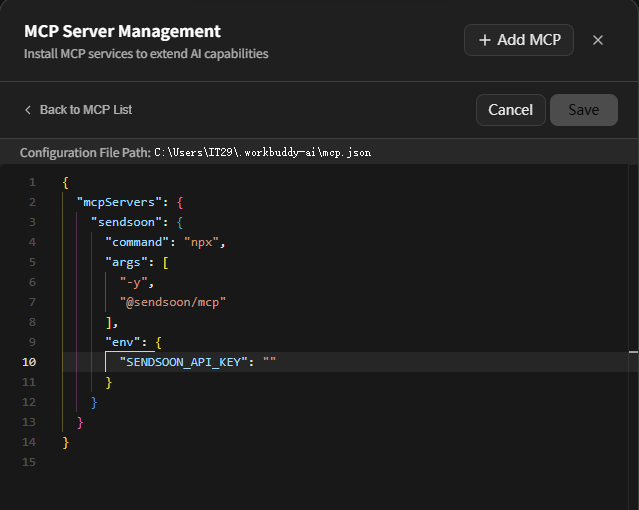
The screenshot shows the WorkBuddy connector editor: the configuration file path is at the top, and the sendsoon JSON is pasted into the editor. After saving, return to the MCP list and confirm sendsoon is connected.
Verify: Start a new conversation and ask for a simple task (e.g. “Look up 8.8.8.8”). Approve the tool if WorkBuddy asks for permission.
Prepare the configuration
Optional environment variable:
| Setting | Required | What to enter |
|---|---|---|
SENDSOON_API_KEY |
No | Leave empty for an unregistered trial. One public IP can send up to three free test emails per day. Enter your generated Key for continued use |
Never commit a real Key to Git or share it with anyone.
Get an API Key
- Sign up or sign in on the SendSoon registration page.
- Open Profile and generate a Key in the API Key section.
- Copy the one-time
ssk_live_...Key immediately and enter it asSENDSOON_API_KEYin your MCP configuration. - Save the configuration and restart your MCP client. Requests with a valid Key do not use the anonymous IP daily quota.
If the anonymous quota is exhausted, send_email will tell you to register and configure a Key. An invalid or revoked Key is rejected and does not fall back to the anonymous quota.
Try it in Google Colab
Skip local setup and try ip_lookup, markitdown_convert, and send_email in the browser.

The notebook calls the same SendSoon HTTP APIs used by these MCP tools.
Visual local testing (MCP Inspector)
To see all three tools in a browser and click through them manually before installing into an AI client, use the MCP Inspector.
Requires Node.js 20+. Run the command below in a terminal; Inspector opens a web UI automatically:
npx @modelcontextprotocol/inspector npx -y @sendsoon/mcp
How to test
- Wait for
MCP Inspector Web is up and runningin the terminal. If the browser does not open, paste thehttp://127.0.0.1:6274?...URL from the terminal. - Confirm the page header shows Connected.
- Open the Tools tab in the top-right area of the page.
- Select a tool from the list on the left, fill in the parameters, and click Execute Tool.
- Read the response in the Results panel on the right. On failure, inspect
error.codeanderror.message.
License
See LICENSE.
Pertanyaan tentang SendSoon MCP
Bagaimana cara menambahkan SendSoon MCP ke Claude Code?
Jalankan claude mcp add --env 'SENDSOON_EMAIL_RECIPIENT=<SENDSOON_EMAIL_RECIPIENT>' --env 'SENDSOON_API_KEY=<YOUR_SENDSOON_API_KEY>' ai -- npx -y @sendsoon/ai di terminal Anda. Tambahkan --scope user agar tersedia di semua proyek.
Bagaimana cara menambahkan SendSoon MCP ke Cursor?
Buka ~/.cursor/mcp.json dan tambahkan server di bawah mcpServers, menggunakan config Cursor yang ditunjukkan di bagian instalasi di atas.
Apakah saya memerlukan API key untuk menggunakan SendSoon?
Tidak, API key bersifat opsional untuk uji coba tanpa registrasi. Anda dapat menggunakan trial anonim yang memungkinkan satu IP publik untuk mengirim hingga tiga email tes gratis per hari.
Bagaimana cara mengetes tool ini di browser sebelum melakukan install?
Anda dapat menggunakan MCP Inspector untuk melihat ketiga tool tersebut di browser dan menjalankannya secara manual.