
MCP server de Proxy QA Browser
Commit 12 nov 2026Lanza navegadores reales a través de proxies basados en EE. UU. con emulación de dispositivos y pruebas automatizadas para formularios web.
También conocido como UbaidBinWaris/proxy_browser, proxy-browser
- Stars
- 1
- Herramientas
- —
- Descargas, 30 días
- —
- Última versión
- —
- Último commit
- 12 nov 2026
- Licencia
- Apache-2.0
¿Qué es Proxy QA Browser MCP?
Proxy QA Browser es un MCP server. Lanza navegadores reales a través de proxies basados en EE. UU. con emulación de dispositivos y pruebas automatizadas para formularios web.
Resumen generado a partir del README del proyecto
Acerca del MCP server de Proxy QA Browser
proxy_browser permite a los profesionales de QA probar formularios web simulando ubicaciones y dispositivos específicos. Esta aplicación de escritorio para Windows, Linux y macOS permite a los usuarios lanzar instancias de navegadores reales —incluyendo Chromium, Firefox, WebKit o navegadores instalados localmente como Chrome, Edge y Brave— dentro de perfiles aislados. Al enrutar el tráfico a través de proxies basados en EE. UU. de proveedores como DataImpulse, Bright Data, Oxylabs, Decodo o IPRoyal, los usuarios pueden verificar cómo se ven sus sitios en estados, ciudades o códigos postales específicos.
Los usuarios pueden elegir entre 226 ajustes preestablecidos de dispositivos para emular teléfonos, tabletas o computadoras de escritorio. La herramienta proporciona capacidades de pruebas automatizadas, incluyendo comprobaciones de accesibilidad, rendimiento y consentimiento, manteniendo un registro local de cada ejecución. Cada sesión captura evidencia como capturas de pantalla, solicitudes de red, estado HTTP y verificación de la IP de salida para asegurar que el proxy funcione según lo previsto. Esto la convierte en una herramienta especializada para pruebas autorizadas de formularios y embudos web propios.
Qué puedes hacer con él
- 1Verificar el comportamiento de formularios regionalesPrueba cómo se comportan los formularios de tu sitio web cuando se accede desde una ciudad o código postal específico de EE. UU. mediante el enrutamiento por proxy.
- 2Emular diseños de dispositivos móvilesComprueba la capacidad de respuesta y la accesibilidad de tu sitio web emulando varios ajustes preestablecidos de teléfonos y tabletas.
- 3Auditar accesibilidad y consentimientoEjecuta comprobaciones automatizadas para asegurar que tu sitio cumpla con los estándares de accesibilidad y muestre correctamente los avisos de consentimiento.
- 4Recopilar evidencia de pruebasCaptura automáticamente capturas de pantalla y solicitudes de red para documentar los resultados de cada ejecución de QA.
Escrito a partir del README del proyecto. Cada caso de uso se verifica con una cita del mismo.
Configuración
LD_LIBRARY_PATHPLAYWRIGHT_SKIP_VALIDATE_HOST_REQUIREMENTS
| Nombre | Descripción | Tipo |
|---|---|---|
| LD_LIBRARY_PATH | — | |
| PLAYWRIGHT_SKIP_VALIDATE_HOST_REQUIREMENTS | — |
Verificaciones automáticas
Ejecutado 15 nov 2026Informe completo →Aún no verificado. Un servidor necesita una puntuación de 80, ningún hallazgo grave y suficientes datos para que podamos revisarlo. Cómo funcionan las verificaciones · Qué corregir para obtener más puntos

- Repositorio de origen vinculado y accesibleubaidbinwaris/proxy_browser is public and reachablegithub.com/ubaidbinwaris/proxy_browser ↗Aprobado
- El paquete indica este repositorio como su origenNo verificado
- Procedencia de la compilación (atestación de Sigstore)No verificado
- Licencia de código abierto (OSI)Apache-2.0spdx.org/licenses/Apache-2.0.html ↗Aprobado
- Commit o lanzamiento en el último añoLast commit or release 2026-11-12github.com/ubaidbinwaris/proxy_browser ↗Aprobado
- OpenSSF ScorecardNo verificado
- El nombre del paquete no es similar a un paquete popularNo verificado
- No hay avisos críticos en el paquete ni en sus dependenciasNo verificado
- Sin instrucciones ocultas para el modelo0 tool descriptions and the README read; no override phrases, credential paths or hidden charactersAprobado
- Las herramientas destructivas están etiquetadasNo verificado
- El endpoint remoto responde al handshake de MCPNo verificado
README
Ver en GitHubProxy QA Browser



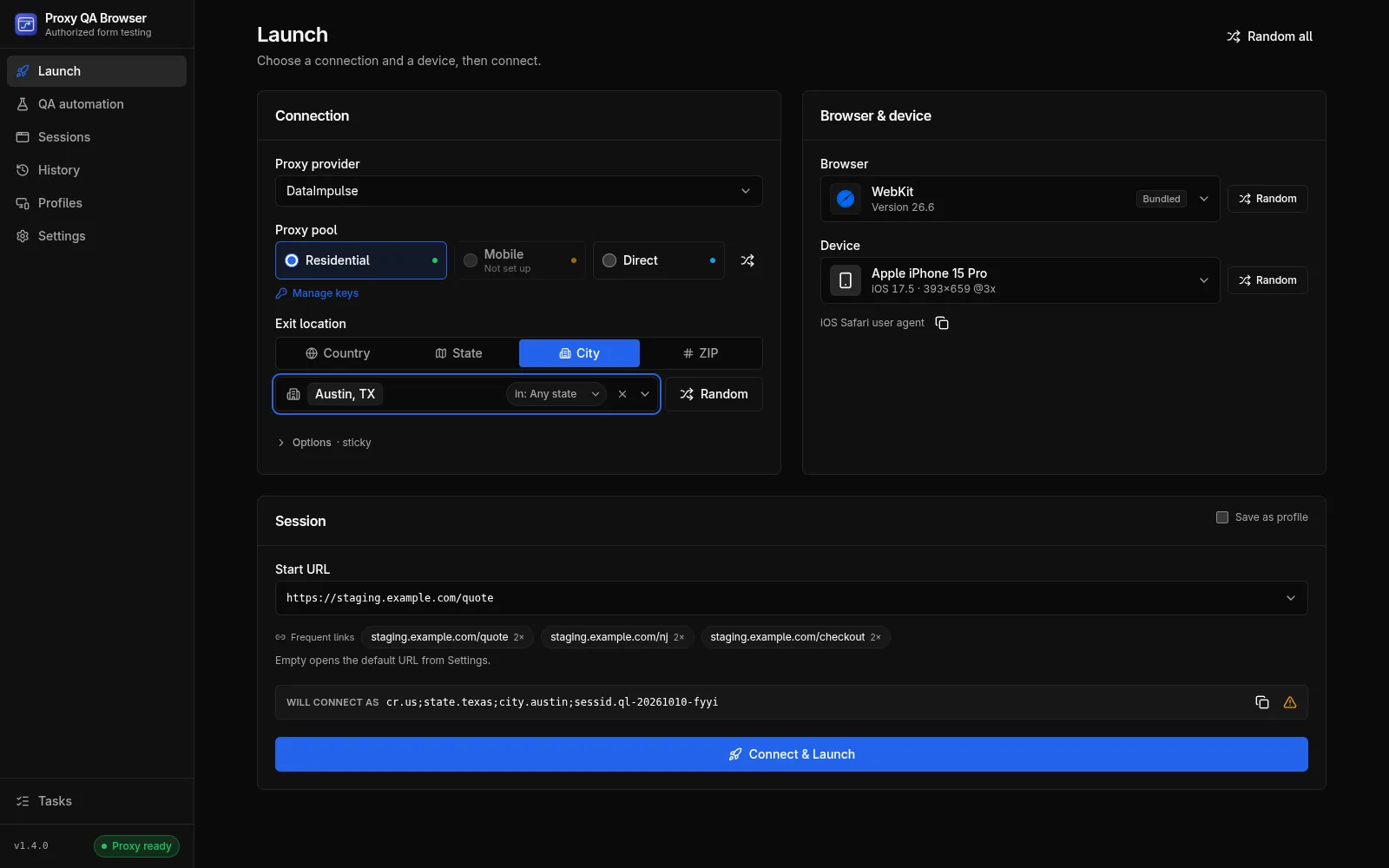
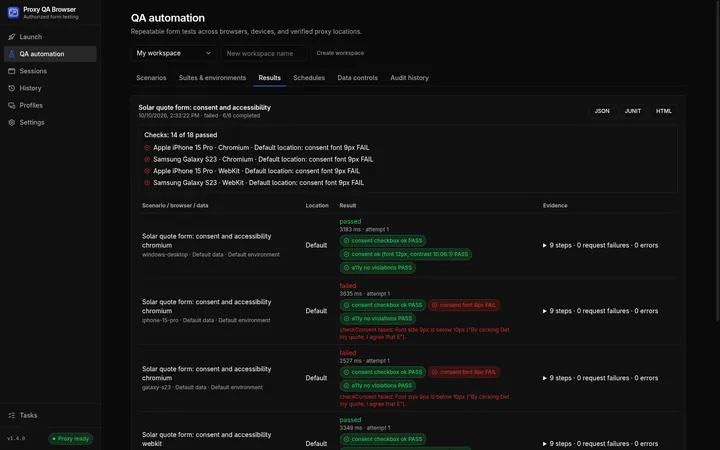
Free, open-source desktop QA browser for testing your own website forms by location, device and browser. Launch a real browser directly or through your own proxy plan from a US state, city or ZIP, emulate phone, tablet and desktop presets, and keep the evidence of every run. QA automation adds recorded scenarios, browser × device × location matrices, consent, accessibility and performance checks, and CI reports.
Download · Documentation · Use cases · Changelog
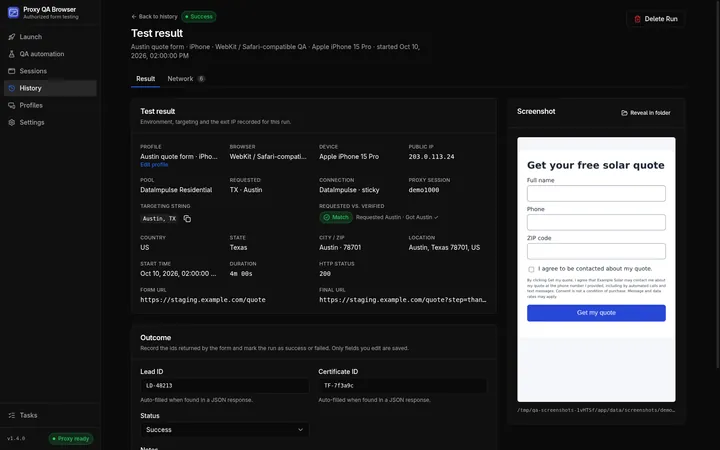
Proxy QA Browser is a desktop app (Windows, Linux and macOS) for authorized QA testing of your own web forms. It opens a real browser window — bundled Chromium, Firefox or WebKit, or a real Chrome, Edge, Brave, Opera, Opera GX or Chromium installed on the machine — inside an isolated browser profile that emulates a chosen device (226 phone, tablet and desktop presets), and routes it through a proxy exit IP of a built-in provider (DataImpulse, plus community-verified Bright Data, Oxylabs, Decodo and IPRoyal) in the US state, city or ZIP code you pick (or connects directly). Before the window opens, the exit IP is checked and compared with the location you asked for. Every launch is recorded locally with its exit IP, location verdict, HTTP status, screenshot, captured network requests and any lead / certificate IDs the form returned.
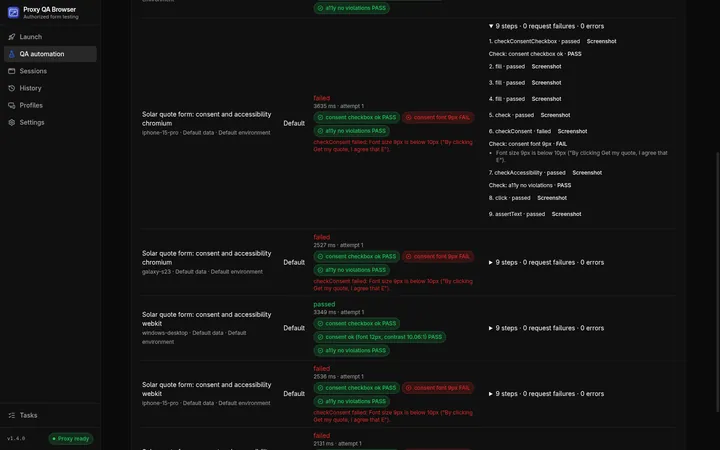
| QA automation results | Step-by-step check evidence |
|---|---|
 |
 |
| Verified exit IP and captured IDs per launch | 226 device presets |
 |
 |
Screenshots are taken from the real app with demo data by scripts/capture-screenshots.mjs. Full documentation:
proxybrowser.ubaidbinwaris.com/docs.
Responsible use. Use this tool only on forms, funnels and sites that you own or are explicitly contracted to test, and only with a proxy plan you are entitled to use. It is not a tool for evading rate limits or fraud controls, scraping third parties, generating fake leads or impersonating real users. Respect your proxy provider's terms of service and the laws that apply to you.
Contents
For operators
- Download and run
- First-run setup
- Using the app
- Proxy and targeting
- Browsers
- Devices
- Browser sessions
- Security and privacy
- Settings reference
- Troubleshooting
- FAQ
For developers
Part 1 — For operators
Download and run
Choose the single portable Windows EXE, the Linux AppImage, or the macOS DMG (Apple silicon or Intel). The macOS DMGs are unsigned (not notarized; the project has no Apple Developer account yet), so macOS needs Open Anyway once, see macOS (DMG). These builds contain no proxy credentials.
| Platform | File | Size (v1.2.0 build) | Browsers | Signed | Updates |
|---|---|---|---|---|---|
| Windows 10/11 x64 | Proxy-QA-Browser-<version>-Windows-x64.exe (portable) |
≈ 100 MiB | Downloaded on first run | When Azure Trusted Signing is configured | In the app (online or USB) |
| Linux x86-64 | Proxy-QA-Browser-<version>-x86_64.AppImage |
≈ 545 MiB | Chromium, Firefox and WebKit built in | n/a | In the app (online or USB) |
| macOS 12+ arm64 / x64 | Proxy-QA-Browser-<version>-macOS-arm64.dmg / -macOS-x64.dmg |
shown on the download page | Downloaded on first run | Ad-hoc unless Apple credentials are configured | The app checks; you download from the website |
Windows (portable EXE)
- Copy
Proxy-QA-Browser-<version>-Windows-x64.exeanywhere (Desktop, Downloads, a USB stick). There is no installer and you do not need administrator rights. - Double-click it. The EXE is not code-signed, so Windows SmartScreen may show "Windows protected your PC". Click More info → Run anyway. Some antivirus products are cautious with unsigned portable EXEs too; see Troubleshooting.
- The portable EXE unpacks itself to
%TEMP%on every launch, so the window takes a few seconds to appear. Use Set up on this computer in Settings → App & updates for a stable local copy and faster later launches. Your data lives in%APPDATA%\proxy-qa-browserand the vault key in%LOCALAPPDATA%\ProxyQABrowser\keys(see Data locations), so moving or deleting the.exeloses nothing. - On first opening, setup starts automatically and downloads missing browser engines into
%APPDATA%\proxy-qa-browser\data\browsersin the background (Chromium is required, Firefox and WebKit are optional). Together they take roughly 400 MB; how long it takes depends on your connection. An internet connection is required for this first preparation. Progress, cancel and retry are available on the Browsers screen. Later openings reuse the downloaded engines. Microsoft Edge, which ships with Windows, is detected automatically and can be used as soon as setup is done. Proxy credentials can be skipped and added later from Settings.
For shortcut setup, Windows pinning, signed USB updates and the publisher’s next-version workflow, see Versioning and USB distribution.
Only one copy of the app runs at a time: starting it again just brings the open window to the front.
Linux (AppImage)
-
Make the file executable and run it:
chmod +x Proxy-QA-Browser-<version>-x86_64.AppImage ./Proxy-QA-Browser-<version>-x86_64.AppImage -
AppImages mount themselves with FUSE 2. If you see
dlopen(): error loading libfuse.so.2, install it — Arch:sudo pacman -S fuse2; Ubuntu 24.04:sudo apt install libfuse2t64; older Debian/Ubuntu:sudo apt install libfuse2— or run it with./Proxy-QA-Browser-<version>-x86_64.AppImage --appimage-extract-and-run. -
The AppImage is self-contained: Chromium, Firefox and WebKit are inside, together with the Ubuntu libraries Playwright's WebKit needs on other distributions (ICU 74, flite 2.2, libxml2 2.9). Nothing is downloaded and no
pacman/aptpackages are needed for the browsers. -
glibc. The app, Chromium and Firefox need glibc 2.25 or newer. The bundled WebKit needs glibc 2.38 or newer (it is built on Ubuntu 24.04), i.e. Ubuntu 24.04+, Debian 13+, Fedora 39+ or a current Arch. On older distributions Chromium and Firefox profiles work but WebKit does not start.
Your data lives in ~/.config/proxy-qa-browser and the vault key in
~/.local/share/proxy-qa-browser/keys.
macOS (DMG)
macOS 12 (Monterey) or later. Pick the DMG for your Mac: -macOS-arm64 for
Apple silicon (M1 and later), -macOS-x64 for Intel. Build it with
npm run build:mac (see Building) until macOS downloads are
published.
- Open the DMG and drag Proxy-QA-Browser into Applications (or
~/Applications). There is no installer; the app never asks for an administrator password. - Gatekeeper. A build without Apple credentials is only ad-hoc signed and not notarized. A copy you downloaded is then refused with "cannot be opened because Apple cannot check it for malicious software" (macOS 15: "Apple could not verify…"). Open System Settings → Privacy & Security, scroll to the message about Proxy-QA-Browser and click Open Anyway (on macOS 14 and earlier, Control-click the app → Open also works). A build you made yourself on the same Mac opens directly. Signed and notarized builds open without any prompt — see macOS signing and notarization.
- On first opening the browser engines download into
~/Library/Application Support/proxy-qa-browser/data/browsers, exactly as on Windows (an internet connection is required once). - Real browsers in
/Applicationsor~/Applications(Chrome, Edge, Brave, Opera, Opera GX, Vivaldi, Chromium) are detected automatically; their version is read from the app bundle'sInfo.plist, never by starting the browser. To add one, the app opens the vendor's download page; drag the browser into Applications and it is detected as soon as it appears. - Updates. Settings → App & updates checks the publisher's signed feed. When a newer release exists it offers Download vX.Y.Z, which opens the download page; replace the app in Applications with the new one. Your profiles, history and vault are kept (they live outside the app bundle). The app does not replace itself on macOS and there is no computer setup or USB update there — the DMG already puts it in Applications.
Your data lives in ~/Library/Application Support/proxy-qa-browser and the
vault key, protected by the macOS Keychain, in
~/Library/Application Support/ProxyQABrowser-keys. The first time the key is
created or read, macOS may ask whether Proxy-QA-Browser may use the
"Proxy-QA-Browser Safe Storage" Keychain item: choose Always Allow.
Closing the window quits the app (as on Windows and Linux).
Starting from an editor's terminal
Terminals hosted by an Electron app (VS Code, Cursor, …) often export
ELECTRON_RUN_AS_NODE=1. The app then behaves like plain Node.js and no
window opens. Start it without that variable:
env -u ELECTRON_RUN_AS_NODE ./Proxy-QA-Browser-<version>-x86_64.AppImage
Double-clicking the file in a file manager is not affected.
First-run setup
On the very first start the app shows a four-step wizard instead of the normal sidebar. On Windows, it opens directly at Browsers and starts missing downloads automatically. Nothing in it contacts the proxy unless you press Test connection.
| Step | What you see | What you do |
|---|---|---|
| 1. Welcome | What will happen, how the vault key is protected on this machine (Key protection, e.g. Windows DPAPI (current user), GNOME Keyring / libsecret), and the Vault file / Key file paths with Reveal vault folder / Reveal key folder | Get started |
| 2. Browsers | Chromium (Required), Firefox and WebKit with their status. Entering this step queues every missing engine as a background download, one after another; each is verified with a headless test launch (no window) and shows Verified ✓ with Files found · Version … · Headless test launch ticks | Wait for Chromium, then Continue; Skip for now appears when Chromium is there, no download is running and Firefox or WebKit is still missing. On a failure: Retry install |
| 3. Proxy credentials | Proxy provider (one entry per built-in provider: DataImpulse and the community-verified providers), then the provider's first product as Required — for DataImpulse DataImpulse Residential: Proxy host (the provider's default gateway, gw.dataimpulse.com), Port (823), Username, Password, any provider-specific fields, and Advanced: sticky session template (providers that support templates). Below it, each further product is Optional, e.g. Add DataImpulse Mobile credentials |
Test connection (one request through the proxy, nothing saved), then Save encrypted; then Continue. Without credentials: Skip for now |
| 4. Done ("You're set") | Summary of browsers, proxy credentials and vault health, plus anything still pending | Open launcher |
- The AppImage ships its browsers, so its wizard has nothing to install: the Welcome step says "Chromium, Firefox and WebKit ship inside this build" and the Browsers step is skipped.
- The Windows EXE starts at Browsers whenever setup is unfinished and any engine is missing. Completed downloads are reused after closing or moving the EXE.
- The app never installs vendor browsers (Chrome, Opera, …) during setup; that is done later from Settings → Browsers.
- Later starts. Until you press Open launcher, every start reopens the wizard at the first step that still needs attention (on Windows, Browsers while any engine is missing; Proxy credentials while no pool has credentials), or at Done when nothing is pending. After that, the app always opens on Launch. Keys can be added or changed at any time with Manage keys (see Manage keys window).
Using the app
Sidebar and status pill
The sidebar has six destinations, in this order: Launch (the start page), QA automation, Sessions (with a green count of open browsers), History, Profiles and Settings. Below them is the Tasks button (a spinner and a count while installs run, a check when all finished, a red dot and Failed after a failure), and at the bottom the app version and one pill: Proxy ready when at least one pool has keys, Proxy not set otherwise. Clicking the pill opens Settings → Advanced → Proxy keys. Clicking the version opens Settings → App & updates; when the startup update check found a newer signed release, a small Update badge sits next to the version (screen readers hear "Update available: v…").
After a restart into a USB or online update, a notice at the top of the page says how it ended: "Updated to v…" (dismiss with ×), or "Update to v… did not finish" with the reason, Retry update (runs the final step again; the current copy stays usable meanwhile) and Open App & updates. Dismissing a failure only hides it; the next start retries the pending update.
Toasts confirm what happened in the background, for example "Browser open · " with the exit IP, "Launch failed · " with the error code, or "Install Google Chrome — done".
Launch
The start page is one form with one primary button. It remembers what you used last.
Header — Random all picks a configured pool (Direct when none is configured), a current device, a compatible installed browser and (unless the pool is Direct) a random location, all at once.
Connection card
- Proxy provider — the providers that have keys (all of them while none has); with one provider this select has a single entry.
- Proxy pool — one-line choices with a status dot: the provider's products (for DataImpulse Residential and Mobile) and Direct (no proxy, this machine's own IP). A pool without keys shows Not set up and cannot be selected; a Manage keys link under the row opens the Manage keys window. The shuffle icon (Random pool) picks one of the configured pools.
- Exit location — Connect by Country, State, City or ZIP
(disabled for Direct):
- Country: a two-letter code (
USby default, from Settings). - State / City / ZIP: a search field over the bundled US location dataset
(51 states incl. DC, 29,540 cities, 40,977 ZIP codes). With an empty query
it lists Recent picks and Popular states / Popular cities
(All states in State mode). Typing searches case- and
accent-insensitively (
new j→ New Jersey;newark njnarrows a city or ZIP search to one state). City and ZIP searches have an Any state filter chip that limits results (and Random) to one state. Keyboard: ↑↓ move · Enter select · Esc close. The footer shows the number of matches. - Random picks a random state, city or ZIP of the current mode (inside the state filter when one is set). Random states only come from DataImpulse's published list of 50 states (DC is searchable but never picked at random).
- Country: a two-letter code (
- Options · sticky / rotating (collapsed) — Sticky session (on by default: "Keeps the same exit IP for the whole session."; off = a rotating exit IP) and Session TTL (min) (1–1440; empty = the default from Settings → Advanced → Targeting → Keep the same IP for (minutes), 15). With Sticky session off, a blue note warns that the website may see a different IP than the one shown.
Browser & device card
- Browser — a picker grouped Bundled (Chromium, Firefox, WebKit) and Installed (Google Chrome, Microsoft Edge, Brave, Opera, Opera GX, Vivaldi, Chromium (system install)). Each row shows a status badge (Bundled, Installed, Not installed, Installing…, Uninstalling…) and the version. A missing browser has an inline Install (one click) or Get (opens the vendor's download page) button. Browsers that cannot emulate the chosen device are greyed out with the reason, e.g. "Firefox can't emulate mobile devices"; browsers with no build for your OS say "Not available for this operating system". When the selected browser is not installed, a hint under the picker offers Install / Get and a Browsers settings link. Random picks an installed browser that supports the device.
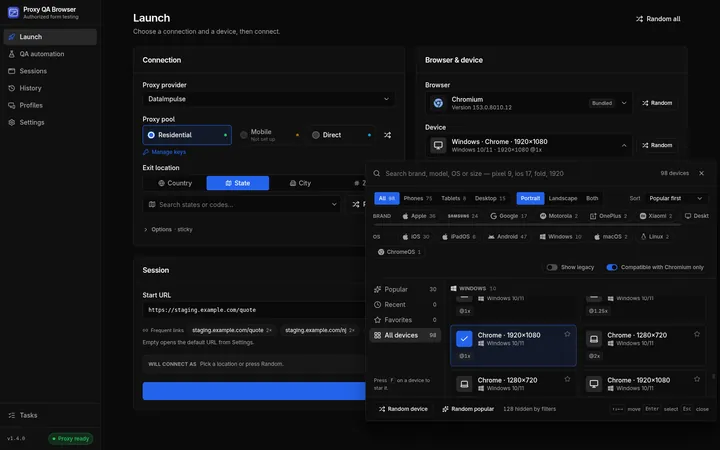
- Device — the device picker; Random picks a random current (non-legacy) device that an installed browser can emulate. Under it, one line names the user agent the device sends (e.g. "Android Chrome user agent") with a Copy user agent button.
Session card
- Start URL — the page to open. "Empty opens the default URL from
Settings." The field fills the Session card width. Click it or its arrow to
show recent and saved URLs; type to search older addresses, then click an
option or use Arrow Up/Down and Enter to fill the field. Escape closes the list.
Only
http://andhttps://URLs are accepted. - Frequent links — one-click shortcuts ranked by usage in the latest 1,000 stored launches. Saved profile links and the default URL are also available. Picking a shortcut fills Start URL; press Connect & Launch when ready.
- Save as profile — a compact checkbox in the Session header, off by default. Off, the launch creates a hidden quick launch profile; on, a name field appears and the profile is kept on the Profiles page. Left empty, the name is generated as " · · ", e.g. "Residential · New Jersey · Apple iPhone 15" ("Direct · " for Direct).
- Will connect as — the exact DataImpulse parameter string that will be
sent, e.g.
cr.us;state.newjersey;sessid.ql-20261007-7f3a;sessttl.15, with a copy button. It never contains your login or password. For Direct it reads "Direct · this machine’s own connection"; without a location and without sticky mode, "No targeting parameters · any exit IP in the pool". An icon at the end carries warnings (state/city/ZIP targeting is billed at 2× by DataImpulse) and what the location policy will do (e.g. "Re-rolls the session (up to 3 attempts) if the exit IP is outside New Jersey."). A pool without keys is spelled out under the line. - Connect & Launch — creates the profile, verifies the exit IP and opens the browser, and takes you straight to the run page. It is disabled while the pool has no keys, the browser is not installed, or the browser is being installed ("Google Chrome is being installed — launch will be available when the install finishes.").
One session at a time. By default only one browser can be open. If one is already open, Connect & Launch shows A session is already open with Go to session, Close it and launch and Dismiss. Turn this off under Settings → General → One session at a time to run several browsers side by side.
Device picker
The device field opens a large panel (a centered dialog on windows narrower than 900 px):
- Search — "Search brand, model, OS or size — pixel 9, ios 17, fold, 1920", with the number of matching devices.
- Filters — device type All / Phones / Tablets / Desktop (with counts), orientation Portrait (default) / Landscape / Both, Sort (Popular first, Newest, Name, Screen size), Brand chips (desktops are listed as Desktop PC), OS chips, Show legacy (off by default) and Compatible with only (on by default). Reset filters appears when anything is narrowed.
- Lists — Popular, Recent (the last 8 devices you chose), Favorites and All devices.
- Cards — name, brand and release year (or OS for desktops), badges for
OS, viewport, scale factor (
@3x), Touch, Landscape, Legacy and Unsupported (with the reason), and a star to add or remove a favorite. - Keyboard — arrow keys move through the grid, Home/End jump, Enter or Space selects, F stars the focused device, typing continues the search, ↑ from the first row returns to the search field, ↓ / Enter in the search field go to the grid / pick the first compatible device, Esc closes.
- Footer — Random device (among the listed devices), Random popular, and how many devices the filters hide.
Recent devices, favorites and recent locations are kept in this computer's app storage only.
Preguntas sobre Proxy QA Browser MCP
¿Qué plataformas es compatible Proxy QA Browser?
La aplicación está disponible para Windows, Linux y macOS.
¿Puedo usar mi propio proveedor de proxy?
Sí, puedes lanzar un navegador a través de tu propio plan de proxy o utilizar los proveedores integrados como DataImpulse, Bright Data, Oxylabs, Decodo e IPRoyal.
¿La aplicación incluye motores de navegación?
Sí, incluye Chromium, Firefox y WebKit integrados, y también puede detectar navegadores reales como Chrome, Edge, Brave y Opera instalados en tu equipo.