
Convierte aplicaciones de Mac en herramientas MCP mediante la reproducción de acciones en el árbol de accesibilidad, permitiendo que los agentes de IA interactúen con las apps sin necesidad de capturas de pantalla.
También conocido como ShaanGS/ventriloquist, ventriloquist-mcp
- Stars
- 5
- Herramientas
- —
- Descargas, 30 días
- 1387
- Última versión
- 0.5.0
- Último commit
- 4 nov 2026
- Licencia
- MIT
¿Qué es Ventriloquist MCP?
Ventriloquist es un MCP server. Convierte aplicaciones de Mac en herramientas MCP mediante la reproducción de acciones en el árbol de accesibilidad, permitiendo que los agentes de IA interactúen con las apps sin necesidad de capturas de pantalla.
Resumen generado a partir del README del proyecto
Acerca del MCP server de Ventriloquist
Ventriloquist permite a los desarrolladores que utilizan agentes de IA automatizar aplicaciones de Mac mediante la reproducción de acciones en el árbol de accesibilidad. En lugar de depender de capturas de pantalla costosas y de que el modelo tome decisiones constantes para cada clic, este servidor convierte flujos de trabajo específicos de una aplicación en herramientas MCP reutilizables. Los usuarios pueden definir herramientas como outlook_file_to_folder o textedit_write_document, que consisten en pasos pregrabados que el agente ejecuta a través de la API de accesibilidad de macOS.
La configuración del servidor requiere macOS y uv, y es compatible con clientes como Claude Desktop, Cursor y Claude Code. Para funcionar, el usuario debe otorgar permisos de Accesibilidad a la aplicación que ejecuta el servidor. Para aplicaciones que no cuentan con herramientas existentes, el live mode permite que un agente explore el árbol de accesibilidad usando vent_live_look y vent_live_act para proponer y guardar nuevas herramientas. Este enfoque reduce significativamente el uso de tokens en comparación con el computer use estándar, ya que devuelve datos de elementos basados en texto en lugar de capturas de pantalla visuales.
Qué puedes hacer con él
- 1Automatizar la organización de correosUn agente puede clasificar y archivar correos en carpetas específicas llamando a herramientas de Outlook predefinidas.
- 2Crear nuevas herramientas para aplicacionesPuedes usar el live mode para que un agente explore una aplicación y guarde secuencias exitosas como nuevas herramientas.
- 3Buscar en espacios de trabajo de códigoUn agente de IA puede navegar por VS Code para encontrar tareas específicas o elementos TODO dentro de un proyecto.
Escrito a partir del README del proyecto. Cada caso de uso se verifica con una cita del mismo.
Cómo instalar Ventriloquist MCP
Formatos verificados el 10 nov 2026Añadir a CursorAñadir a GooseInstalar Ventriloquist MCP en Claude Code
$ claude mcp add ventriloquist -- uvx ventriloquist-mcpInstalar Ventriloquist MCP en Cursor
~/.cursor/mcp.json
{
  "mcpServers": {
    "ventriloquist": {
      "command": "uvx",
      "args": [
        "ventriloquist-mcp"
      ]
    }
  }
}Instalar Ventriloquist MCP en VS Code
.vscode/mcp.json
{
  "servers": {
    "ventriloquist": {
      "type": "stdio",
      "command": "uvx",
      "args": [
        "ventriloquist-mcp"
      ]
    }
  }
}Instalar Ventriloquist MCP en VS Code CLI
$ code --add-mcp '{"name":"ventriloquist","type":"stdio","command":"uvx","args":["ventriloquist-mcp"]}'Instalar Ventriloquist MCP en Claude Desktop
claude_desktop_config.json
{
  "mcpServers": {
    "ventriloquist": {
      "command": "uvx",
      "args": [
        "ventriloquist-mcp"
      ]
    }
  }
}Instalar Ventriloquist MCP en Codex
$ codex mcp add ventriloquist -- uvx ventriloquist-mcpInstalar Ventriloquist MCP en Codex config.toml
~/.codex/config.toml
[mcp_servers.ventriloquist]
command = "uvx"
args = ["ventriloquist-mcp"]
Instalar Ventriloquist MCP en Gemini CLI
$ gemini mcp add -s user ventriloquist uvx -- ventriloquist-mcpInstalar Ventriloquist MCP en Gemini settings.json
~/.gemini/settings.json
{
  "mcpServers": {
    "ventriloquist": {
      "command": "uvx",
      "args": [
        "ventriloquist-mcp"
      ]
    }
  }
}Configuración
VENT_ALLOW_HIGHSet to 1 to run tools a pack marks as high risk without asking. Without it, they're offered only to clients that can ask you to confirm each call (MCP elicitation).
VENT_HEALSet to 1 to let the server call a model to re-ground broken anchors. Off keeps serving model-free.
VENT_HOMEDirectory for your own packs and traces. Defaults to ~/.ventriloquist.
VENT_LIVESet to 1 for live mode: the agent can look at and use any running app through its accessibility tree, and save steps that worked as a tool once you approve them. Sends, deletes and the like ask you first.
VENT_NO_VALUESSet to 1, together with VENT_HEAL=1, to keep field values out of what the healer sends to the model.
VENT_READ_ONLYSet to 1 to serve read-only tools only. Every other call is refused, even with VENT_ALLOW_HIGH.
| Nombre | Descripción | Tipo |
|---|---|---|
| VENT_ALLOW_HIGH | Set to 1 to run tools a pack marks as high risk without asking. Without it, they're offered only to clients that can ask you to confirm each call (MCP elicitation). | |
| VENT_HEAL | Set to 1 to let the server call a model to re-ground broken anchors. Off keeps serving model-free. | |
| VENT_HOME | Directory for your own packs and traces. Defaults to ~/.ventriloquist. | |
| VENT_LIVE | Set to 1 for live mode: the agent can look at and use any running app through its accessibility tree, and save steps that worked as a tool once you approve them. Sends, deletes and the like ask you first. | |
| VENT_NO_VALUES | Set to 1, together with VENT_HEAL=1, to keep field values out of what the healer sends to the model. | |
| VENT_READ_ONLY | Set to 1 to serve read-only tools only. Every other call is refused, even with VENT_ALLOW_HIGH. |
Verificaciones automáticas
Ejecutado 13 nov 2026Informe completo →Pasó nuestras verificaciones automáticas. Esto no es una auditoría de seguridad: lee el código y dale al servidor el acceso más limitado que necesite. Cómo funcionan las verificaciones

- Repositorio de origen vinculado y accesibleAprobado
- Licencia de código abierto (OSI)Aprobado
- Commit o lanzamiento en el último añoAprobado
- El nombre del paquete no es similar a un paquete popularAprobado
- El endpoint remoto usa HTTPSNo verificado
- Las herramientas destructivas están etiquetadasNo verificado
- Sin instrucciones ocultas para el modeloAprobado
- No hay avisos críticos en el paquete ni en sus dependenciasAprobado
README
Ver en GitHubAbout
Ventriloquist is an MCP server that turns actions in Mac apps into tools
your agent can call, like outlook_file_to_folder or
textedit_write_document. Each tool is a list of steps on elements in the
app's accessibility tree, saved in a JSON file per app (its pack). A tool
is made once, by hand or by letting a model explore the app and propose
tools you approve. After that, every call replays the saved steps: no
screenshots, and no model deciding where to click. Your agent still
decides which tool to call.
For an app with no tools yet, turn on live mode. Your agent reads the app's tree and presses and types by element number, and once a task works it can ask to keep those steps as a tool.
In one test, sorting six test emails in Outlook, the same model read about 3.6x fewer tokens through vent than through Claude's built-in computer use, and made no wrong clicks (computer use made two). That was one run each, with caveats in docs/BENCHMARKS.md.
Set it up with your agent
Paste this into Claude Code, Codex or another coding agent on your Mac:
Install Ventriloquist with uv (uv tool install ventriloquist-mcp), then read https://github.com/ShaanGS/ventriloquist/blob/main/onboarding.md and walk me through it.
The agent checks what's already set up, installs vent, connects it to
your agent app, and stops only for the steps that need you, like
switching on the Accessibility permission. It follows
onboarding.md,
and SKILL.md
(also printed by vent skill) tells it how to use vent afterwards.
Or install the plugin, which sets up the server and the skill with live mode on, for Claude Code:
claude plugin marketplace add ShaanGS/ventriloquist
claude plugin install ventriloquist@ventriloquist
OpenClaw installs the same folder; see integrations/claude-plugin.
Try it in a minute
To do it by hand instead, you need macOS and
uv (brew install uv).
uv tool install ventriloquist-mcp
vent doctor
If your shell says vent: command not found, uv's tool folder isn't on
your PATH yet (common after brew install uv): run uv tool update-shell
and open a new terminal. To upgrade later, run
uv tool upgrade ventriloquist-mcp.
vent doctor checks the one permission vent needs. If it says
Accessibility is missing, open System Settings > Privacy & Security >
Accessibility, switch on your terminal app, restart the terminal, and run
it again. (pipx install ventriloquist-mcp
works too.)
Now drive TextEdit with the pack that ships with vent:
echo "hello" > /tmp/vent-demo.txt && open -a TextEdit /tmp/vent-demo.txt
vent run TextEdit write_document --arg text="typed by a pack"
vent run TextEdit read_document
The document changes with no keystrokes and no screenshot: the pack sets
the text area's value through the accessibility API, then reads it back
to verify. write_document replaces the whole text of the frontmost
TextEdit document, which is why the first line opens a scratch file; don't
run it with a document you care about in front.
Use it from Claude, Cursor, or Codex
vent serve speaks MCP over stdio. GUI apps start MCP servers without
your shell's PATH, so the config needs vent's absolute path, and
vent mcp-config prints the entry with the right path for your machine:
{
  "mcpServers": {
    "ventriloquist": {
      "command": "/Users/you/.local/bin/vent",
      "args": ["serve"]
    }
  }
}
-
Claude Desktop: quit Claude, then merge it into
~/Library/Application Support/Claude/claude_desktop_config.json. Claude rewrites that file while it runs, so an edit made with it open gets lost. -
Cursor: merge it into
~/.cursor/mcp.json. -
Claude Code:
claude mcp add --scope user ventriloquist -- ~/.local/bin/vent serve -
Codex CLI: add to
~/.codex/config.toml:[mcp_servers.ventriloquist] command = "/Users/you/.local/bin/vent" args = ["serve"]
The Accessibility permission belongs to whichever app starts
vent serve: Cursor itself, or your terminal for Claude Code and Codex.
Switch it on for that app (use the + button if it isn't in the list yet)
and restart it.
Claude Desktop is the exception. It runs each MCP server as its own
process for permissions, so macOS checks vent's Python rather than
Claude, and switching Claude on does nothing for vent. vent mcp-config
and vent doctor print that file's path. Drag it from Finder into
System Settings > Privacy & Security > Accessibility (the + picker greys
it out), then restart Claude. Use the vent mcp-config entry rather
than uvx here: under uvx, macOS checks uv instead, and a grant for
uv covers everything uv runs.
If every call fails with "not trusted for Accessibility", the message names the app or file to switch on.
Tools show up as textedit_write_document, code_show_search,
slack_filter_channels, and so on. Then ask for things in plain words,
like "open the Search view in VS Code and search the workspace for
TODO". Tools a pack marks read_only or mutating run when called. A
tool marked high risk is hidden unless your client can ask you to
confirm each call (MCP elicitation), or the server was started with
VENT_ALLOW_HIGH=1, which runs it without asking. Start the server with
VENT_READ_ONLY=1 to serve read-only tools and nothing else.
docs/SECURITY.md
explains why (T9).
Use any app live
Live mode is off by default. Turn it on with VENT_LIVE=1 in the server's
environment. vent mcp-config --live prints the entry with it, and for
Claude Code:
claude mcp add --scope user -e VENT_LIVE=1 ventriloquist -- ~/.local/bin/vent serve
Your agent gets three more tools:
vent_live_looklists a running app's elements, numbered, read from its accessibility tree. No screenshot.vent_live_actpresses an element, or types into a text field, by its number. Each act runs through the same runtime a saved tool uses, so a step that worked once is one that replays.vent_live_savekeeps steps that worked as a tool. You see the exact steps and every bit of text it will type, and nothing is saved until you accept. The new tool shows up right away in clients that listen for tool-list changes; others need a restart.
It asks you before pressing anything labelled like send, delete, pay or
archive, before buttons with no label, and before typing over a long
text. Without a client that can ask (MCP elicitation), those steps are
refused, and a tool to save waits for vent approve in a terminal. It
never touches password fields, sign-in windows, terminals, password
managers or System Settings. docs/SECURITY.md
(T13) has the details.
What ships
| App | Tools | Notes |
|---|---|---|
| TextEdit | write_document, read_document |
Acts on the frontmost document; write_document replaces all of its text |
| Notes | create_note, read_open_note |
|
| VS Code | show_explorer, show_search, show_source_control, search_workspace |
Launch VS Code with --force-renderer-accessibility |
| Slack | show_home, filter_channels |
Same flag as VS Code |
The Outlook tools in the demo aren't bundled: they're tied to three test folders. They're in examples/outlook as a pack you can copy and adapt. So are the WhatsApp tools, in examples/whatsapp: they read your chat list and open chat and leave drafts, and none of them sends.
More packs people have shared are in
examples/,
and vent add-pack examples/<app> adds one after you approve each tool.
If you make tools for an app you use, a pull request adding them there
helps the next person with that app.
Electron apps like VS Code and Slack only publish a working tree when
started with that flag, for example
open -a "Visual Studio Code" --args --force-renderer-accessibility.
Without it the tree can still be read, but actions get silently ignored.
Each step in a tool finds its element through an anchor: a recorded
description of the element (its role, label and identifier, and the chain
of elements above it) that vent matches against the live app. Anchors are
recorded per machine and per app version, so the bundled packs are
working examples of the format more than guarantees for your exact setup.
If a tool refuses to resolve, that's on purpose (it never guesses
between lookalike elements), and re-recording takes about a
minute with vent inspect and vent anchor, as in
Write a tool by hand. Section 5 of
docs/ARCHITECTURE.md
has the details.
How it works
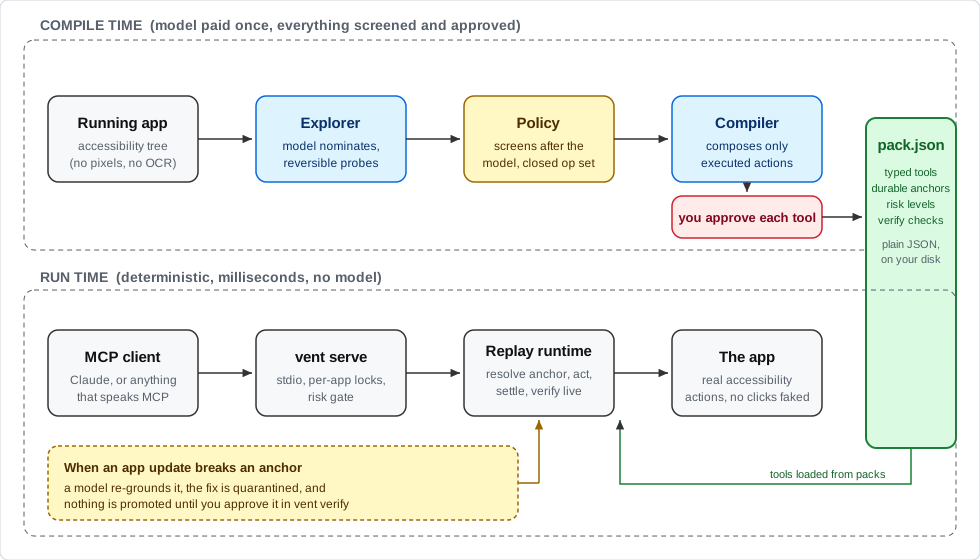
With computer use, a model looks at your app and decides every action,
every time. That works on any app with no setup, but every run pays again
for screenshots and model decisions. vent moves that work to when a tool
is made. You get back tools like write_document(text) or
file_to_folder(folder), which run no model on vent's side. The agent still
reads, judges and picks the tool, and vent does the clicking.
On a one-step task the two are even: in a TextEdit test, Claude's computer use needed the same two tool calls and about the same total time, and vent added about 6x fewer tokens to the agent's context. On a longer task the difference shows. Triaging six test emails in new Outlook (read each one, flag it if it needs a reply or has a deadline, file it into one of three folders), both filed all six correctly. vent took 1:59 and made no wrong clicks. Claude's computer use took 2:31, made two harmless wrong moves, and put about 3.6x as many tokens into the context (18k against 5k), mostly screenshots, where vent returns text. The TextEdit test was three rounds each and the Outlook one a single run each, with the same model, which knew the answer key both times; docs/BENCHMARKS.md has the method and the caveats.
On the author's Mac, through Claude Code, a TextEdit read takes about half
a second end to end and a write about 1.1 s. Measured with a plain MCP
client, vent's own share is about 0.1 s for a read and 0.5 s for a write.
If you turn healing on (VENT_HEAL=1), a model is brought back in when an
app update breaks a recorded action, but the fix sits in quarantine until
you approve it.
The top half of the diagram runs once per app. It's the only part that uses a model, with a policy screening every probe and a human approving every tool. The bottom half is what you actually use day to day, and it has no model in it unless you turn healing on. The pack file in the middle is the whole interface between the two: plain JSON you can read, diff, and check into a repo.
Native Mac apps have carried an accessibility layer for decades because screen readers depend on it. It turns out it's also a pretty good API for driving apps, if you're careful about how you find elements again later.
How it compares
- Built-in computer use (the computer-use features in Claude and Codex, and most open-source agents): a model looks at the app, through screenshots and, in Claude's case, the accessibility tree too, and picks the actions on every run. It works on any app with no setup, and each run pays for those screenshots and model decisions.
- Record-a-task features (Claude's Record a skill, Codex's Record & Replay): you show the task once and get a skill, written instructions the model follows on every run with computer use and its other tools, so it still picks the actions each time.
- Accessibility-tree tools such as agent-desktop, Peekaboo and MacOS-MCP: they hand the accessibility tree and its actions to your agent's model, which still decides each click on every call. Nothing to record first, and nothing fixed either.
- AppleScript servers: dependable where an app has a scripting dictionary, which most Electron apps don't.
- Ventriloquist: the steps are worked out once, when a tool is made, by hand or by a model exploring the app. What gets served is a fixed set of tools you approved, replayed with no model. It covers fewer apps than any of the above, by design, and in exchange calls are cheap in tokens and the same every time. The closest idea elsewhere is terminator, which records workflows as deterministic code on Windows.
Make a pack for another app
vent doctor Spotify                 # does this app expose a usable tree?
vent explore Spotify --no-values    # a model probes safely, the policy screens every action
vent compile Spotify                # the model proposes tools; you approve each against its literal steps
vent run Spotify <tool> --arg k=v   # call one tool directly
vent verify Spotify                 # dry-resolve anchors; promote quarantined heals
Approved tools join the app's pack, so a pack can grow over several explore runs. A tool with the same name as one already there is replaced only if you say yes, and an app with a bundled pack starts from it, so its tools stay.
With live mode on, there is a third way: ask your agent to do the task in the app, then to save the steps.
vent compile makes tools that press buttons and type text, because
those are the two things the explorer does. A tool that reads text back
or waits for something to appear is written by hand, and so was every
tool that ships with vent. Write a tool by hand
shows how.
vent explore, vent compile, and vent run --heal call a model, and so
does vent serve if you start it with VENT_HEAL=1 to let it heal broken
anchors. Nothing else does. Healing takes --no-values too
(VENT_NO_VALUES=1 for the server) to keep field contents from the
model. The model comes from the Claude Code CLI if it's installed and
signed in, with no API key needed, run apart from your own Claude Code
setup (none of your MCP servers, hooks or memory), or from the Anthropic
API: install with
uv tool install --with anthropic ventriloquist-mcp
and set ANTHROPIC_API_KEY.
Packs you make live in ~/.ventriloquist/packs/ (set VENT_HOME to move
it), next to the traces vent explore records. A pack there replaces the
bundled pack for the same app, which is also where a healed bundled pack
ends up; delete your copy to go back to the bundled one. If your copy
fails to load, vent warns you rather than quietly serving the bundled
pack in its place, and a broken pack never stops the other apps' tools.
Write a tool by hand
vent appsshows the app's bundle id, andvent inspect <App>lists the elements in its windows, each with a number.vent anchor <App> <number>prints that element's anchor as JSON.- Put it in a step of a tool in
~/.ventriloquist/packs/<bundle id>/pack.json. A read is{"op": "read_value", "anchor": ...}and a wait is{"op": "wait_for", "anchor": ..., "timeout_s": 5}. The bundled TextEdit pack is a short one to copy from. A step that types takes its text from a parameter: declare it underparamsand give the step"value": {"param": "<name>"}. A parameter with anenumlist accepts only those values, the way the Outlook example accepts only its three folders. vent run <App> <tool>runs it, andvent verify <App>checks that every anchor in the pack still resolves.
An anchor that records a window title only ever acts in a window with
that title. Empty its window_title for a tool that should act on
whichever window is in front, as the bundled TextEdit tools do.
Limitations
This is an early release by one developer. What it doesn't do yet, or does with caveats:
- macOS only. The whole approach rests on the macOS accessibility API.
- The Accessibility grant is broad. macOS gives it to the app that starts vent (your terminal, Cursor) or, under Claude Desktop, to vent's Python. Anything else that app starts, or that runs on that Python as its own process, can then drive every app on your Mac. vent's own scoping (named apps, a policy, risk levels) is self-discipline inside that grant, not an OS boundary. SECURITY.md T10 has the details.
- Packs are recorded on one machine. Anchors held up under resizes, full restarts, and a deliberately degraded environment on the author's Mac, but nobody has measured them on a second Mac yet. A bundled pack may refuse on yours and need re-recording.
- The app needs a usable tree. AppKit apps have one. Electron and
Chromium apps need
--force-renderer-accessibility. Anything drawn on a canvas (Figma's design surface, games) exposes its chrome and nothing inside. - The app has to be running, with the window the tool expects. macOS only lists windows on the current Space to accessibility clients, so while you're in a full-screen app or on another desktop, vent goes through the app's main window, which macOS still reports. Reading and writing text work there without switching Spaces. A press in an app that isn't in front can change the button and nothing else (TextEdit's Bold does), so the Notes, VS Code and Slack tools, and the Outlook example's flag and filing tools, bring their app to the front while they run and hand focus back afterwards, switching Spaces if they need to, and fail before acting if the app won't come forward. The Outlook read tool works without coming to the front. The app's other windows on other Spaces stay out of reach, and so does the title bar of a full-screen window. A locked screen makes every app look empty.
- Calls take turns. A GUI is one shared thing, so calls to the same app queue, and tools that bring their app to the front queue across apps, since there's only one front. A call the client cancels while it waits never runs.
- Few tools check the app's state. A tool can refuse unless an
element it needs is on screen: VS Code's
search_workspacerefuses until the Search view is open and says to callcode_show_search. Other tools' needs, like Slack'sfilter_channelsneeding the Home tab, are still written in their descriptions, and compiled tools don't record the state they started in. - High-risk tools need a client that can ask you. Each call to one
asks you first, through MCP elicitation. A client without it doesn't
see them, unless the server runs with
VENT_ALLOW_HIGH=1, and then they run without asking. - Exploring acts on your real app. The explorer clicks and types
under a policy, and probes are restored, but an app that syncs every
keystroke may send a probe string before it's undone. Explore against
a scratch document or a test account, and use
--no-valuesto keep field contents away from the model. The policy reads English labels, so the explorer refuses an app whose menus are in another language. - Read tools hand app text to your client's model. vent marks it as untrusted data (SECURITY.md T12); whether the client respects that is up to the client.
- No system dialogs, and nothing behind a dialog. File pickers and save sheets are out of scope for now. A step refuses while its window has a sheet open or the app shows a modal dialog, unless the step was recorded inside that sheet or dialog.
Anchor durability
On the author's Mac, 82.5% to 100% of the recorded anchors for TextEdit, Finder, VS Code and Slack still resolved after a window resize, and for VS Code and Slack after a full restart too. None bound a wrong element: when two candidates look alike, vent refuses instead of guessing. The numbers, the whole-tool runs and the field notes are in docs/BENCHMARKS.md.
Design
Read docs/ARCHITECTURE.md before the code, and docs/SECURITY.md for the threat model. Both were reviewed and rewritten before the code was written, and each phase since has been reviewed the same way.
Contributing
Bug reports from Macs other than the author's are the most useful thing
right now, especially vent verify <app> --report out.json output for a
bundled pack. To work on the code:
git clone https://github.com/ShaanGS/ventriloquist && cd ventriloquist
uv run pytest
The test suite needs no Mac permissions, no live apps, and no model credentials, and runs in CI on Linux and macOS. CONTRIBUTING.md has the rules that are load-bearing.
Preguntas sobre Ventriloquist MCP
¿Cómo agrego Ventriloquist MCP a Claude Code?
Ejecuta claude mcp add ventriloquist -- uvx ventriloquist-mcp en tu terminal. Añade --scope user para que esté disponible en todos los proyectos.
¿Cómo agrego Ventriloquist MCP a Cursor?
Abre ~/.cursor/mcp.json y añade el servidor en mcpServers, usando la configuración de Cursor que se muestra en la sección de instalación de arriba.
¿En qué se diferencia el funcionamiento de Ventriloquist del computer use de Claude?
En lugar de usar capturas de pantalla y decisiones del modelo para cada paso, Ventriloquist utiliza pasos grabados sobre elementos del árbol de accesibilidad de la aplicación, lo que reduce el uso de tokens y evita clics erróneos.
¿Qué permisos se requieren para usar Ventriloquist?
El servidor requiere permisos de Accesibilidad de macOS para la aplicación que inicia el MCP server (como tu terminal o Claude Desktop).
¿Puedo usar Ventriloquist con aplicaciones que no tienen herramientas predefinidas?
Sí, puedes usar el 'live mode' para que tu agente explore el árbol de accesibilidad de la aplicación y luego guarde esos pasos exitosos como una nueva herramienta.
¿Ventriloquist maneja información sensible como contraseñas?
No, el servidor está diseñado para evitar la interacción con áreas sensibles como campos de contraseña o ventanas de inicio de sesión.