
Permite que los clientes de IA envíen correos electrónicos, realicen búsquedas de IP pública y conviertan documentos locales a Markdown.
También conocido como sendsoon/ai, @sendsoon/ai
- Stars
- 6
- Herramientas
- —
- Descargas, 30 días
- —
- Última versión
- 0.1.2
- Último commit
- 12 oct 2026
- Licencia
- MIT
¿Qué es SendSoon MCP?
SendSoon es un MCP server. Permite que los clientes de IA envíen correos electrónicos, realicen búsquedas de IP pública y conviertan documentos locales a Markdown.
Resumen generado a partir del README del proyecto
Acerca del MCP server de SendSoon
SendSoon MCP proporciona un puente para que clientes de IA como Claude Desktop, Codex y WorkBuddy interactúen con servicios externos. Permite que estos agentes realicen tareas específicas como enviar correos electrónicos, obtener información de IP pública y convertir archivos locales al formato Markdown. Los usuarios pueden integrar este MCP server en sus flujos de trabajo actuales configurando un archivo JSON o TOML con el comando y las variables de entorno necesarios.
La configuración requiere una API key de SendSoon para evitar ciertas limitaciones. Aunque hay una prueba anónima disponible, esta restringe a los usuarios al envío de tres correos de prueba gratuitos al día a través de una única IP pública. Para obtener la funcionalidad completa, los desarrolladores deben generar una clave en el sitio web de SendSoon y añadirla a su configuración. El servidor utiliza npx para ejecutar el paquete @sendsoon/mcp, lo que facilita su despliegue en diferentes sistemas operativos.
Qué puedes hacer con él
- 1Envío automatizado de correosPide a tu agente de IA que envíe un mensaje específico a un destinatario con un asunto determinado.
- 2Recuperación de información de redSolicita detalles sobre la ubicación o el proveedor de servicios asociado a una dirección IP específica.
- 3Conversión de formato de documentosIndica a la IA que transforme un archivo PDF local a Markdown para facilitar su procesamiento.
Escrito a partir del README del proyecto. Cada caso de uso se verifica con una cita del mismo.
Cómo instalar SendSoon MCP
Formatos verificados el 10 nov 2026Añadir a CursorAñadir a GooseInstalar SendSoon MCP en Claude Code
$ claude mcp add --env 'SENDSOON_EMAIL_RECIPIENT=<SENDSOON_EMAIL_RECIPIENT>' --env 'SENDSOON_API_KEY=<YOUR_SENDSOON_API_KEY>' ai -- npx -y @sendsoon/aiInstalar SendSoon MCP en Cursor
~/.cursor/mcp.json
{
  "mcpServers": {
    "ai": {
      "command": "npx",
      "args": [
        "-y",
        "@sendsoon/ai"
      ],
      "env": {
        "SENDSOON_EMAIL_RECIPIENT": "<SENDSOON_EMAIL_RECIPIENT>",
        "SENDSOON_API_KEY": "<YOUR_SENDSOON_API_KEY>"
      }
    }
  }
}Instalar SendSoon MCP en VS Code
.vscode/mcp.json
{
  "servers": {
    "ai": {
      "type": "stdio",
      "command": "npx",
      "args": [
        "-y",
        "@sendsoon/ai"
      ],
      "env": {
        "SENDSOON_EMAIL_RECIPIENT": "<SENDSOON_EMAIL_RECIPIENT>",
        "SENDSOON_API_KEY": "<YOUR_SENDSOON_API_KEY>"
      }
    }
  }
}Instalar SendSoon MCP en VS Code CLI
$ code --add-mcp '{"name":"ai","type":"stdio","command":"npx","args":["-y","@sendsoon/ai"],"env":{"SENDSOON_EMAIL_RECIPIENT":"<SENDSOON_EMAIL_RECIPIENT>","SENDSOON_API_KEY":"<YOUR_SENDSOON_API_KEY>"}}'Instalar SendSoon MCP en Claude Desktop
claude_desktop_config.json
{
  "mcpServers": {
    "ai": {
      "command": "npx",
      "args": [
        "-y",
        "@sendsoon/ai"
      ],
      "env": {
        "SENDSOON_EMAIL_RECIPIENT": "<SENDSOON_EMAIL_RECIPIENT>",
        "SENDSOON_API_KEY": "<YOUR_SENDSOON_API_KEY>"
      }
    }
  }
}Instalar SendSoon MCP en Codex
$ codex mcp add ai --env 'SENDSOON_EMAIL_RECIPIENT=<SENDSOON_EMAIL_RECIPIENT>' --env 'SENDSOON_API_KEY=<YOUR_SENDSOON_API_KEY>' -- npx -y @sendsoon/aiInstalar SendSoon MCP en Codex config.toml
~/.codex/config.toml
[mcp_servers.ai]
command = "npx"
args = ["-y", "@sendsoon/ai"]

[mcp_servers.ai.env]
SENDSOON_EMAIL_RECIPIENT = "<SENDSOON_EMAIL_RECIPIENT>"
SENDSOON_API_KEY = "<YOUR_SENDSOON_API_KEY>"
Instalar SendSoon MCP en Gemini CLI
$ gemini mcp add -s user -e 'SENDSOON_EMAIL_RECIPIENT=<SENDSOON_EMAIL_RECIPIENT>' -e 'SENDSOON_API_KEY=<YOUR_SENDSOON_API_KEY>' ai npx -- -y @sendsoon/aiInstalar SendSoon MCP en Gemini settings.json
~/.gemini/settings.json
{
  "mcpServers": {
    "ai": {
      "command": "npx",
      "args": [
        "-y",
        "@sendsoon/ai"
      ],
      "env": {
        "SENDSOON_EMAIL_RECIPIENT": "<SENDSOON_EMAIL_RECIPIENT>",
        "SENDSOON_API_KEY": "<YOUR_SENDSOON_API_KEY>"
      }
    }
  }
}Configuración
SENDSOON_EMAIL_RECIPIENTObligatorioRecipient address allowed for test sends.
SENDSOON_API_KEYSecretoSendSoon API Key (ssk_live_...). Leave empty for the anonymous trial of three sends per public IP per day.
SENDSOON_API_BASE_URLOverride the SendSoon API base URL. Defaults to https://www.sendsoonai.com.
| Nombre | Descripción | Tipo |
|---|---|---|
| SENDSOON_EMAIL_RECIPIENT | Recipient address allowed for test sends. | Obligatorio |
| SENDSOON_API_KEY | SendSoon API Key (ssk_live_...). Leave empty for the anonymous trial of three sends per public IP per day. | Secreto |
| SENDSOON_API_BASE_URL | Override the SendSoon API base URL. Defaults to https://www.sendsoonai.com. |
Verificaciones automáticas
Ejecutado 14 nov 2026Informe completo →Pasó nuestras verificaciones automáticas. Esto no es una auditoría de seguridad: lee el código y dale al servidor el acceso más limitado que necesite. Cómo funcionan las verificaciones

- Repositorio de origen vinculado y accesiblesendsoon/ai is public and reachablegithub.com/sendsoon/ai ↗Aprobado
- El paquete indica este repositorio como su origen@sendsoon/ai names sendsoon/ai as sourcenpmjs.com/package/@sendsoon/ai ↗Aprobado
- Procedencia de la compilación (atestación de Sigstore)No build attestation published for this releaseNo verificado
- Licencia de código abierto (OSI)MITspdx.org/licenses/MIT.html ↗Aprobado
- Commit o lanzamiento en el último añoLast commit or release 2026-10-12github.com/sendsoon/ai ↗Aprobado
- OpenSSF ScorecardNo verificado
- El nombre del paquete no es similar a un paquete popularNo popular package one edit away from @sendsoon/aiAprobado
- No hay avisos críticos en el paquete ni en sus dependencias99 resolved dependencies checked; no critical advisoryosv.dev ↗Aprobado
- Sin instrucciones ocultas para el modelo0 tool descriptions and the README read; no override phrases, credential paths or hidden charactersAprobado
- Las herramientas destructivas están etiquetadasNo verificado
- El endpoint remoto responde al handshake de MCPNo verificado
README
Ver en GitHubSendSoon AI MCP
SendSoon MCP is a Model Context Protocol (MCP) server that lets Codex, Claude, and WorkBuddy use SendSoon capabilities: send email, look up public IPs, and convert local documents to Markdown.
Configure it once, then describe tasks in natural language. You usually do not need to mention SendSoon in every prompt.
What you can do
| Tool | Purpose | Example |
|---|---|---|
send_email |
Send a single email | “Send me a test email” |
ip_lookup |
Look up public IP information | “Look up the location of 8.8.8.8” |
markitdown_convert |
Convert a local document to Markdown | “Convert this PDF to Markdown” |
Everyday examples
Send an email to user@example.com with the subject “Meeting reminder” and the body “The meeting starts at 3 PM today.”
Look up the location and ISP for 8.8.8.8.
Convert /path/to/report.pdf to Markdown and summarize the key points.
If the agent does not select a tool automatically, say:
Use the sendsoon MCP to complete this task.
Install in your AI client
The instructions below cover Codex, Claude Desktop, and WorkBuddy.
Codex
Config file: user-level ~/.codex/config.toml (macOS / Linux) or %USERPROFILE%\.codex\config.toml (Windows).
[mcp_servers.sendsoon]
command = "npx"
args = ["-y", "@sendsoon/mcp"]

[mcp_servers.sendsoon.env]
SENDSOON_API_KEY = ""
Verify: Save the file, restart Codex, and run /mcp in a chat. You should see sendsoon connected. In the desktop app, also check Settings > MCP servers.
First use: Start a new conversation and ask for a simple task (e.g. “Look up 8.8.8.8”). Approve the tool if Codex asks for permission.
Claude Desktop
Config file:
| OS | Path |
|---|---|
| macOS | ~/Library/Application Support/Claude/claude_desktop_config.json |
| Windows | %APPDATA%\Claude\claude_desktop_config.json |
You can also open Settings > Developer > Edit Config inside Claude Desktop.
{
  "mcpServers": {
    "sendsoon": {
      "command": "npx",
      "args": ["-y", "@sendsoon/mcp"],
      "env": {
        "SENDSOON_API_KEY": ""
      }
    }
  }
}
Verify: Save the file, fully quit Claude Desktop (including the system tray), then relaunch. Start a new chat and confirm sendsoon tools appear in the tools menu or settings.
First use: Claude may ask to approve tool access on the first invocation; allow it to continue.
WorkBuddy
WorkBuddy can add SendSoon by pasting the connector JSON directly in MCP Server Management.
Config file: %USERPROFILE%\.workbuddy-ai\mcp.json (Windows) or ~/.workbuddy-ai/mcp.json (macOS / Linux).
- Open WorkBuddy and go to MCP Server Management.
- Click Add MCP.
- Paste the JSON below into the editor. Fill in
SENDSOON_API_KEYif you have a Key; leave it empty for the anonymous trial. - Click Save.
{
  "mcpServers": {
    "sendsoon": {
      "command": "npx",
      "args": [
        "-y",
        "@sendsoon/mcp"
      ],
      "env": {
        "SENDSOON_API_KEY": ""
      }
    }
  }
}
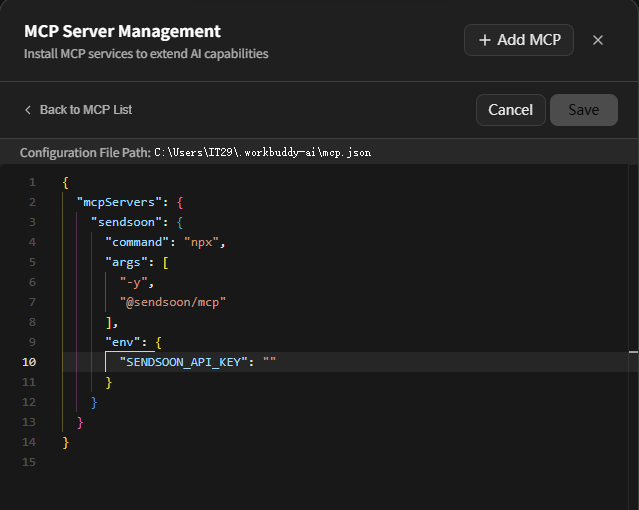
The screenshot shows the WorkBuddy connector editor: the configuration file path is at the top, and the sendsoon JSON is pasted into the editor. After saving, return to the MCP list and confirm sendsoon is connected.
Verify: Start a new conversation and ask for a simple task (e.g. “Look up 8.8.8.8”). Approve the tool if WorkBuddy asks for permission.
Prepare the configuration
Optional environment variable:
| Setting | Required | What to enter |
|---|---|---|
SENDSOON_API_KEY |
No | Leave empty for an unregistered trial. One public IP can send up to three free test emails per day. Enter your generated Key for continued use |
Never commit a real Key to Git or share it with anyone.
Get an API Key
- Sign up or sign in on the SendSoon registration page.
- Open Profile and generate a Key in the API Key section.
- Copy the one-time
ssk_live_...Key immediately and enter it asSENDSOON_API_KEYin your MCP configuration. - Save the configuration and restart your MCP client. Requests with a valid Key do not use the anonymous IP daily quota.
If the anonymous quota is exhausted, send_email will tell you to register and configure a Key. An invalid or revoked Key is rejected and does not fall back to the anonymous quota.
Try it in Google Colab
Skip local setup and try ip_lookup, markitdown_convert, and send_email in the browser.

The notebook calls the same SendSoon HTTP APIs used by these MCP tools.
Visual local testing (MCP Inspector)
To see all three tools in a browser and click through them manually before installing into an AI client, use the MCP Inspector.
Requires Node.js 20+. Run the command below in a terminal; Inspector opens a web UI automatically:
npx @modelcontextprotocol/inspector npx -y @sendsoon/mcp
How to test
- Wait for
MCP Inspector Web is up and runningin the terminal. If the browser does not open, paste thehttp://127.0.0.1:6274?...URL from the terminal. - Confirm the page header shows Connected.
- Open the Tools tab in the top-right area of the page.
- Select a tool from the list on the left, fill in the parameters, and click Execute Tool.
- Read the response in the Results panel on the right. On failure, inspect
error.codeanderror.message.
License
See LICENSE.
Preguntas sobre SendSoon MCP
¿Cómo agrego SendSoon MCP a Claude Code?
Ejecuta claude mcp add --env 'SENDSOON_EMAIL_RECIPIENT=<SENDSOON_EMAIL_RECIPIENT>' --env 'SENDSOON_API_KEY=<YOUR_SENDSOON_API_KEY>' ai -- npx -y @sendsoon/ai en tu terminal. Añade --scope user para que esté disponible en todos los proyectos.
¿Cómo agrego SendSoon MCP a Cursor?
Abre ~/.cursor/mcp.json y añade el servidor en mcpServers, usando la configuración de Cursor que se muestra en la sección de instalación de arriba.
¿Necesito una API key para usar SendSoon?
No, una API key es opcional para una prueba sin registro. Puedes usar una prueba anónima que permite a una IP pública enviar hasta tres correos de prueba gratuitos al día.
¿Cómo puedo probar las herramientas en un navegador antes de instalarlas?
Puedes usar el MCP Inspector para ver las tres herramientas en un navegador y ejecutarlas manualmente.