
Permite que los clientes de IA busquen, lean y vuelvan a copiar el historial del portapapeles de tu Mac y el texto de capturas de pantalla de forma local.
También conocido como pastea-app/pastea-mcp, pastea-mcp, @pastea/mcp
- Stars
- 0
- Herramientas
- —
- Descargas, 30 días
- —
- Última versión
- 1.0.4
- Último commit
- 3 sept 2026
- Licencia
- MIT
¿Qué es Pastea MCP?
Pastea es un MCP server. Permite que los clientes de IA busquen, lean y vuelvan a copiar el historial del portapapeles de tu Mac y el texto de capturas de pantalla de forma local.
Resumen generado a partir del README del proyecto
Acerca del MCP server de Pastea
Pastea proporciona un puente local que conecta el historial del portapapeles de macOS con asistentes de IA. Este servidor permite que herramientas como Claude Desktop, Cursor, VS Code y Codex interactúen con tus elementos copiados, incluyendo el texto reconocido dentro de capturas de pantalla. Debido a que el servidor se ejecuta en 127.0.0.1, tus datos permanecen en tu Mac y no salen de tu equipo hacia servidores de terceros.
Los usuarios pueden integrar el servidor mediante comandos npx o archivos de instalación dedicados. Una vez conectado, el asistente puede usar herramientas específicas para buscar entre clips, leer contenido completo con miniaturas de imágenes, listar colecciones y volver a copiar elementos al portapapeles del sistema. Esta configuración requiere macOS 15 o posterior y una suscripción a Pastea Pro para funcionar.
La seguridad se gestiona mediante un proceso de permisos manual. Cuando una aplicación de IA intenta conectarse por primera vez, aparece un aviso en la aplicación Pastea solicitando autorización. Puedes revocar el acceso a cualquier herramienta específica en cualquier momento a través del menú de configuración de Pastea. El asistente tiene restringido el borrado de clips o el acceso a elementos ocultos por gestores de contraseñas.
Qué puedes hacer con él
- 1Recuperar texto de capturas de pantallaPide a tu asistente de IA que encuentre y lea el texto que fue capturado dentro de una imagen copiada previamente.
- 2Buscar en el historial del portapapelesIndica a la IA que localice un enlace específico o el nombre de un archivo de tu actividad reciente en el portapapeles.
- 3Restaurar clips al portapapelesHaz que el asistente de IA coloque un clip histórico específico de nuevo en tu portapapeles para pegarlo de inmediato.
- 4Gestionar colecciones del portapapelesPide a la IA que liste las diferentes colecciones y el recuento de historial que tienes organizados en Pastea.
Escrito a partir del README del proyecto. Cada caso de uso se verifica con una cita del mismo.
Cómo instalar Pastea MCP
Formatos verificados el 10 nov 2026Añadir a CursorAñadir a GooseInstalar Pastea MCP en Claude Code
$ claude mcp add pastea-mcp -- npx -y @pastea/mcpInstalar Pastea MCP en Cursor
~/.cursor/mcp.json
{
  "mcpServers": {
    "pastea-mcp": {
      "command": "npx",
      "args": [
        "-y",
        "@pastea/mcp"
      ]
    }
  }
}Instalar Pastea MCP en VS Code
.vscode/mcp.json
{
  "servers": {
    "pastea-mcp": {
      "type": "stdio",
      "command": "npx",
      "args": [
        "-y",
        "@pastea/mcp"
      ]
    }
  }
}Instalar Pastea MCP en VS Code CLI
$ code --add-mcp '{"name":"pastea-mcp","type":"stdio","command":"npx","args":["-y","@pastea/mcp"]}'Instalar Pastea MCP en Claude Desktop
claude_desktop_config.json
{
  "mcpServers": {
    "pastea-mcp": {
      "command": "npx",
      "args": [
        "-y",
        "@pastea/mcp"
      ]
    }
  }
}Instalar Pastea MCP en Codex
$ codex mcp add pastea-mcp -- npx -y @pastea/mcpInstalar Pastea MCP en Codex config.toml
~/.codex/config.toml
[mcp_servers.pastea-mcp]
command = "npx"
args = ["-y", "@pastea/mcp"]
Instalar Pastea MCP en Gemini CLI
$ gemini mcp add -s user pastea-mcp npx -- -y @pastea/mcpInstalar Pastea MCP en Gemini settings.json
~/.gemini/settings.json
{
  "mcpServers": {
    "pastea-mcp": {
      "command": "npx",
      "args": [
        "-y",
        "@pastea/mcp"
      ]
    }
  }
}Configuración
PASTEA_MCP_URL
| Nombre | Descripción | Tipo |
|---|---|---|
| PASTEA_MCP_URL | — |
Verificaciones automáticas
Ejecutado 14 nov 2026Informe completo →Pasó nuestras verificaciones automáticas. Esto no es una auditoría de seguridad: lee el código y dale al servidor el acceso más limitado que necesite. Cómo funcionan las verificaciones

- Repositorio de origen vinculado y accesiblepastea-app/pastea-mcp is public and reachablegithub.com/pastea-app/pastea-mcp ↗Aprobado
- El paquete indica este repositorio como su origen@pastea/mcp names pastea-app/pastea-mcp as sourcenpmjs.com/package/@pastea/mcp ↗Aprobado
- Procedencia de la compilación (atestación de Sigstore)Sigstore attestation for @pastea/mcpnpmjs.com/package/@pastea/mcp/v/1.0.4#provenance ↗Aprobado
- Licencia de código abierto (OSI)MITspdx.org/licenses/MIT.html ↗Aprobado
- Commit o lanzamiento en el último añoLast commit or release 2026-09-03github.com/pastea-app/pastea-mcp ↗Aprobado
- OpenSSF ScorecardNo verificado
- El nombre del paquete no es similar a un paquete popularNo popular package one edit away from @pastea/mcpAprobado
- No hay avisos críticos en el paquete ni en sus dependencias1 resolved dependencies checked; no critical advisoryosv.dev ↗Aprobado
- Sin instrucciones ocultas para el modelo0 tool descriptions and the README read; no override phrases, credential paths or hidden charactersAprobado
- Las herramientas destructivas están etiquetadasNo verificado
- El endpoint remoto responde al handshake de MCPNo verificado
README
Ver en GitHubPastea MCP


Local MCP server for Pastea. Give Claude, Cursor, Codex, VS Code and other AI tools access to your Mac's clipboard history — without anything leaving your Mac.
Your assistant can search what you copied, pull a clip into context (including the text Pastea reads inside your screenshots), and put a clip back on the clipboard for you to paste.
Pastea runs the MCP server itself, on 127.0.0.1 only. This package is the thin,
dependency-free bridge that AI apps launch: it finds Pastea, asks it for access once —
you click Allow in Pastea — and relays messages over stdio.
Install
Claude Desktop
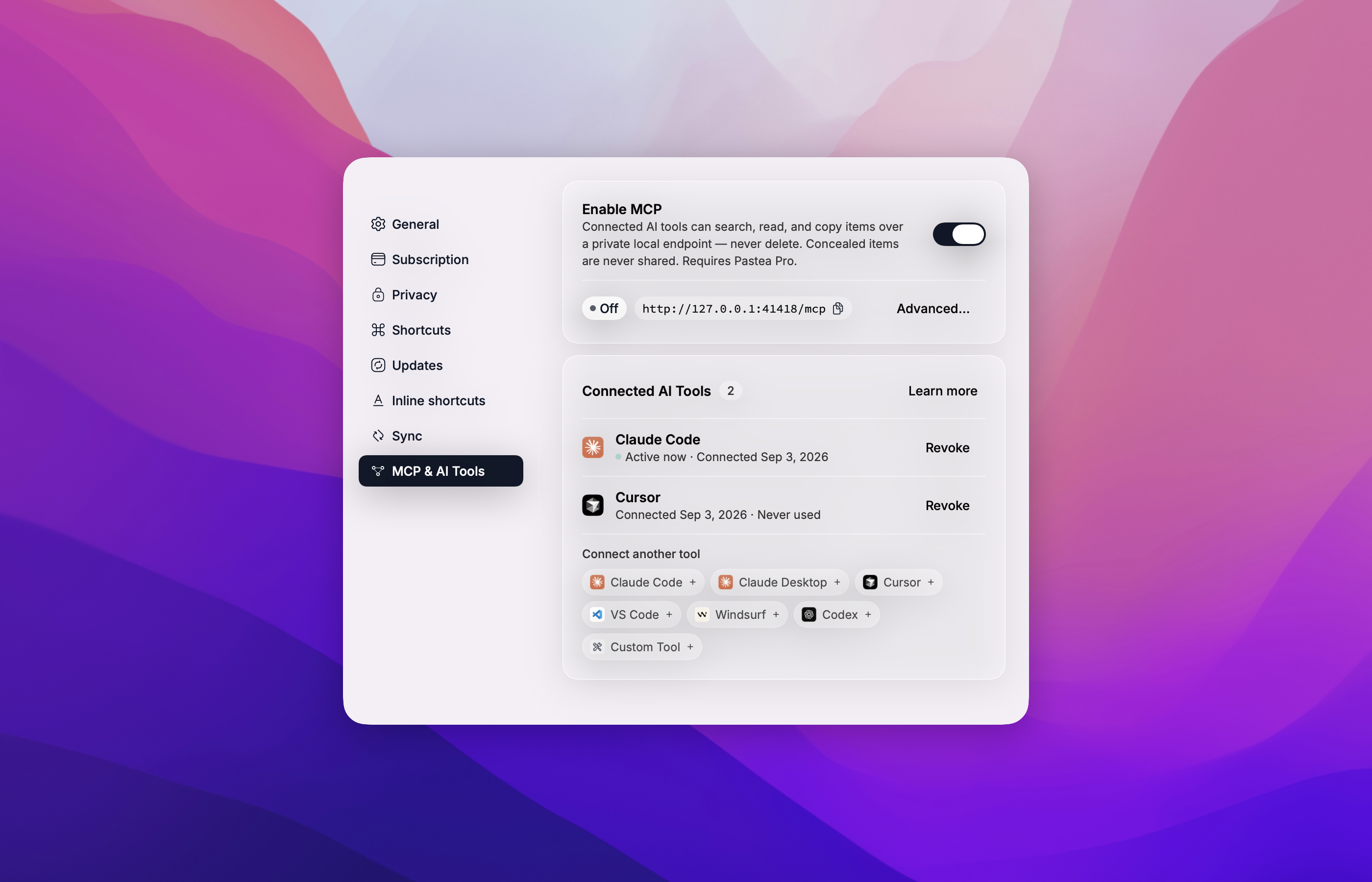
One click from Pastea: open Settings → MCP & AI Tools, turn on Enable MCP, and click Claude Desktop. Claude Desktop opens with the Pastea extension ready to install.
Or find Pastea in Claude Desktop under Settings → Extensions → Browse extensions, or
download pastea-mcp-<version>.mcpb from the
latest release and double-click it.
The first time Claude uses it, Pastea asks you to allow the connection.
Every other AI app
Use add-mcp to connect Pastea to all your installed
AI apps at once:
npx add-mcp @pastea/mcp
Or connect each app yourself:
Claude Code
claude mcp add pastea -- npx -y @pastea/mcp
Codex
codex mcp add pastea -- npx -y @pastea/mcp
Cursor

VS Code

Anything else that runs stdio MCP servers:
{ "mcpServers": { "pastea": { "command": "npx", "args": ["-y", "@pastea/mcp"] } } }
The first time an app uses Pastea, Pastea shows "Allow <app> to use your clipboard history?" — click Allow and the tools appear.
Connect from Pastea
Every app above can also be connected from inside Pastea — Settings → MCP & AI Tools, click the app's chip. Cursor and VS Code open an install prompt; Claude Code, Windsurf and Codex get the exact command or config to paste, already carrying an access token, so no pairing prompt is needed.
What your assistant can do
| Tool | What it does |
|---|---|
search_clips |
Search your clipboard history and lists — text, links, file names, and text recognized in screenshots. |
get_clip |
Read one clip in full, with a thumbnail for pictures. |
list_collections |
List your history and the lists you made, with counts. |
copy_clip |
Put a clip back on the system clipboard, exactly as copied. You paste it yourself with ⌘V. |
pastea_status |
Says whether Pastea is reachable and connected, and what to do if not. |
An AI tool can never delete a clip, never pastes into another app, and never sees items Pastea conceals (from password managers).
How pairing works
The bridge ships with no credentials. On first use it asks Pastea for access and Pastea shows
"Allow Claude Desktop to use your clipboard history?" (or Cursor, Codex, …). Click Allow
and the tools appear a moment later; click Don't Allow and nothing is granted — the assistant
gets a pastea_status tool that explains the situation.
Connections are listed in Pastea → Settings → MCP & AI Tools → Connected AI Tools, where you can Revoke each one. Pastea then asks again only if you ask the assistant to reconnect.
Requirements
- macOS 15 or later
- Pastea 1.3+ with Pastea Pro, and Enable MCP turned on in Settings → MCP & AI Tools
- For
npxinstalls: Node.js 20+ (Claude Desktop needs nothing — it ships its own)
Privacy Policy
Pastea MCP runs locally on your Mac.
- It connects only to Pastea on
127.0.0.1and to nothing else. It makes no network requests to Nexo Labs or any third party, and carries no analytics or telemetry. - It moves clipboard data only between Pastea and the AI app that runs it, and only after you clicked Allow in Pastea. What that AI app does with clips it reads is governed by that app's own privacy policy.
- It stores one thing: the access token Pastea issued when you clicked Allow, in
~/Library/Application Support/Pastea/MCP Bridge/tokens.json, readable by your user account only. Revoking the connection in Pastea invalidates it immediately; uninstalling Pastea removes the file. - Concealed clips are never available to it, and it cannot delete anything.
Full policy — what data Pastea processes, how it is stored, sharing, retention, and contact: https://pastea.app/privacy.
Troubleshooting
"Pastea isn't running, or its MCP endpoint is turned off."
Open Pastea and turn on Enable MCP in Settings → MCP & AI Tools, then ask the assistant to
call pastea_status.
"Pastea Pro is required."
MCP access is a Pro feature. Subscribe in Pastea's Settings, then call pastea_status.
"Pastea is asking the user to allow this connection." Look for the Pastea window — it may be behind the AI app — and click Allow.
The tools vanished.
The connection was revoked in Pastea, or Pastea was reset. Ask the assistant to call
pastea_status to pair again.
Tools don't show up after connecting. Fully quit and reopen the AI app so it relaunches the bridge.
Changed Pastea's port? The bridge reads it from Pastea's preferences on every launch; restart the AI app.
Logs for Claude Desktop: ~/Library/Logs/Claude/mcp-server-Pastea.log. The bridge never logs
the token.
Development
npm install
npm test            # node --test, no network
npm run build       # tsc → dist/
scripts/pack.sh     # validate + pack → build/pastea-mcp-<version>.mcpb + SHA256SUMS
Run it against a development Pastea by hand:
PASTEA_MCP_URL=http://127.0.0.1:41418/mcp node dist/index.js
then type JSON-RPC lines on stdin (initialize, notifications/initialized, tools/list).
Releases are cut by tagging v<version> (matching package.json, manifest.json,
server.json and src/version.ts); the workflow packs the bundle and publishes it.
Contributing
Issues and pull requests welcome — see the issue tracker.
License
Preguntas sobre Pastea MCP
¿Cómo agrego Pastea MCP a Claude Code?
Ejecuta claude mcp add pastea-mcp -- npx -y @pastea/mcp en tu terminal. Añade --scope user para que esté disponible en todos los proyectos.
¿Cómo agrego Pastea MCP a Cursor?
Abre ~/.cursor/mcp.json y añade el servidor en mcpServers, usando la configuración de Cursor que se muestra en la sección de instalación de arriba.
¿Qué puede hacer mi asistente de IA con Pastea?
Tu asistente puede buscar en el historial del portapapeles (incluyendo texto en capturas de pantalla), leer clips completos con miniaturas, listar colecciones y volver a copiar clips en el portapapeles de tu sistema.
¿Se envían mis datos del portapapeles a la nube?
No, el servidor se ejecuta localmente en tu Mac y solo se conecta a Pastea en 127.0.0.1, por lo que no realiza peticiones de red externas.
¿Funciona con las versiones gratuitas de Pastea?
No, el acceso vía MCP requiere una suscripción a Pastea Pro.
¿Puede la IA borrar mi historial del portapapeles?
No, el asistente de IA tiene restringida la capacidad de borrar clips o ver elementos ocultos por Pastea, como los de los gestores de contraseñas.