
Envuelve acciones de git, GitHub, GitLab, Bitbucket y Jira para que un cliente de IA pueda gestionar repositorios, elementos de trabajo, commits, issues y pull requests.
También conocido como gitkraken/gk-cli, @gitkraken/gk
- Stars
- 467
- Herramientas
- —
- Descargas, 30 días
- 304.568
- Última versión
- 3.1.77
- Último commit
- 12 nov 2026
- Licencia
- —
¿Qué es GitKraken MCP?
GitKraken es un MCP server. Envuelve acciones de git, GitHub, GitLab, Bitbucket y Jira para que un cliente de IA pueda gestionar repositorios, elementos de trabajo, commits, issues y pull requests.
Resumen generado a partir del README del proyecto
Acerca del MCP server de GitKraken
Gestionar múltiples repositorios y tareas de desarrollo desde un cliente de IA es lo que permite gk-cli. Este MCP server local actúa como un puente entre tu LLM y tu flujo de trabajo de desarrollo al envolver acciones de git, GitHub, GitLab, Bitbucket y Jira. Permite a los desarrolladores gestionar elementos de trabajo, issues y pull requests a través de una interfaz unificada, incluso cuando trabajan en varios repositorios diferentes simultáneamente.
Los usuarios interactúan con el servidor configurándolo en sistemas macOS, Windows o Unix. La configuración requiere autenticarse con la plataforma de GitKraken mediante el comando auth y añadir tokens de proveedores para tus servicios de hosting específicos. Una vez configurado, el servidor proporciona herramientas para la generación de mensajes de commit con IA y la creación automatizada de pull requests. También admite el paso directo de comandos estándar de git, lo que permite a la IA ejecutar comandos como status o remote directamente a través de la interfaz.
Qué puedes hacer con él
- 1Generación automatizada de commits y PRUn cliente de IA puede usar el servidor para escribir mensajes de commit y crear pull requests utilizando inteligencia artificial.
- 2Gestión de tareas en múltiples repositoriosLos desarrolladores pueden agrupar diferentes repositorios en un único elemento de trabajo para gestionar funcionalidades complejas en todo un codebase.
- 3Seguimiento de issues y elementos de trabajoPuedes instruir a una IA para que gestione tu backlog de desarrollo y haga el seguimiento de issues específicos utilizando las acciones de proveedores integradas.
Escrito a partir del README del proyecto. Cada caso de uso se verifica con una cita del mismo.
Cómo instalar GitKraken MCP
Formatos verificados el 10 nov 2026Añadir a CursorAñadir a GooseInstalar GitKraken MCP en Claude Code
$ claude mcp add gk-cli -- npx -y @gitkraken/gkInstalar GitKraken MCP en Cursor
~/.cursor/mcp.json
{
  "mcpServers": {
    "gk-cli": {
      "command": "npx",
      "args": [
        "-y",
        "@gitkraken/gk"
      ]
    }
  }
}Instalar GitKraken MCP en VS Code
.vscode/mcp.json
{
  "servers": {
    "gk-cli": {
      "type": "stdio",
      "command": "npx",
      "args": [
        "-y",
        "@gitkraken/gk"
      ]
    }
  }
}Instalar GitKraken MCP en VS Code CLI
$ code --add-mcp '{"name":"gk-cli","type":"stdio","command":"npx","args":["-y","@gitkraken/gk"]}'Instalar GitKraken MCP en Claude Desktop
claude_desktop_config.json
{
  "mcpServers": {
    "gk-cli": {
      "command": "npx",
      "args": [
        "-y",
        "@gitkraken/gk"
      ]
    }
  }
}Instalar GitKraken MCP en Codex
$ codex mcp add gk-cli -- npx -y @gitkraken/gkInstalar GitKraken MCP en Codex config.toml
~/.codex/config.toml
[mcp_servers.gk-cli]
command = "npx"
args = ["-y", "@gitkraken/gk"]
Instalar GitKraken MCP en Gemini CLI
$ gemini mcp add -s user gk-cli npx -- -y @gitkraken/gkInstalar GitKraken MCP en Gemini settings.json
~/.gemini/settings.json
{
  "mcpServers": {
    "gk-cli": {
      "command": "npx",
      "args": [
        "-y",
        "@gitkraken/gk"
      ]
    }
  }
}Verificaciones automáticas
Ejecutado 12 nov 2026Informe completo →Pasó nuestras verificaciones automáticas. Esto no es una auditoría de seguridad: lee el código y dale al servidor el acceso más limitado que necesite. Cómo funcionan las verificaciones · Qué corregir para obtener más puntos

- Repositorio de origen vinculado y accesibleAprobado
- Licencia de código abierto (OSI)No licenseHallazgo
- Commit o lanzamiento en el último añoAprobado
- El nombre del paquete no es similar a un paquete popularAprobado
- El endpoint remoto usa HTTPSNo verificado
- Las herramientas destructivas están etiquetadasNo verificado
- Sin instrucciones ocultas para el modeloAprobado
- No hay avisos críticos en el paquete ni en sus dependenciasAprobado
README
Ver en GitHub🚀 GitKraken CLI
gk is GitKraken on the command line. The core functionality is focused on "Work Items" which can be thought of as the feature or issue you are trying to tackle. This allows you to work with multiple repos at once and get the same UX as if you were in a monorepo. We also provide robust AI-powered commit messages and Pull Request generation. It also provides an MCP server that streamlines working with git and your Issue and git hosting providers.
GitKraken CLI is available on macOS, Windows, and Unix systems.

Table of Contents
MCP Server
The GitKraken MCP server is a local MCP server that is powerful and easy to use. It wraps git, GitHub, Jira MCP actions as well as provides tools to LLMs that work with GitKraken APIs and functionality. You can find specific installation instructions based on your chosen AI application in the Help Center.
If you want to read more about the MCP server, you can check out the introduction blog post
Documentation
gk help is going to be your best source for exploring the CLI. But also see the workflows below.
Welcome to GitKraken CLI, a premium CLI experience for managing multiple repositories with familiar GIT CLI commands

Usage:
  gk [flags]
  gk [command]

AUTHENTICATING
  auth         Authenticate with the GitKraken platform
  provider     Add or remove provider tokens

CORE COMMANDS
  graph        Display commit graph in current repository
  issue        Manage your issues
  organization Manage your Gitkraken organizations
  work         Interact with your work.
  workspace    Interact with your workspaces. Alias: 'ws'

Additional Commands:
  help         Help about any command
  setup        Display information about your current system configuration
  version      Print the version number of GK CLI

Flags:
  -h, --help   help for gk

Use "gk [command] --help" for more information about a command.
Workflows
Start with a single repo. You can add more later.
In general, your process will look like this:
# Authenticate
gk auth login

# Navigate to a git repo directory on your filesystem
cd ./path/to/repo

# Then create a Work Item and the current directory
# will be automatically added to the Work Item
gk work create "My new work item"

# Edit files...
# ...

# Commit your changes using AI
gk work commit --ai

# Push your changes
gk work push

# Create a Pull Request
gk work pr create --ai
Once you have familiarized yourself with using a single repo, try out creating work items and generating commits and PRs for multiple repos at a time by just adding multiple repos to a new Work Item.
# Add a repo to the current work item
gk work add ./path/to/repo # path could be as simple as "." if you are in the directory already
git Command Passthrough
You can also use gk to pass through any git command. eg:
gk status
gk remote -v
# etc
Installation
macOS
gk is available from Homebrew with the following command:
Homebrew:
brew install gitkraken-cli
Or download it from the releases page and add it to your binaries folder:
mv ~/Downloads/gk /usr/local/bin/gk
Unix / Ubuntu

gk is available as a downloadable binary from the releases page. Once you have it, add it to your binaries folder:
mv ~/Downloads/gk /usr/local/bin/gk
Or create a new directory, move the binary and add it to $PATH:
mkdir "$HOME/cli"
mv ~/Downloads/gk "$HOME/cli"
export PATH="$HOME/gk:$PATH"
You can also [download][releases page] your corresponding package (.deb, .rpm) and install it with:
sudo apt install ./gk.deb
or
sudo rpm -i ./gk.rpm
Windows
gk is available from [Winget][winget] with the following command:
winget install gitkraken.cli
⚙️ Configuration
Nerd Fonts
The GitKraken CLI supports Nerd Fonts to display icons for some commands. To ensure correct icon rendering, please obtain and install a Nerd Font available at https://www.nerdfonts.com/. After installation, set the selected Nerd Font as the default font for your terminal.
Troubleshooting
gk login freezes after authenticating in browser
This problem is due to the browser. Currently we know that Safari and Brave do not allow to respond to localhost through port 1314. To fix this, change your default browser or copy the URL before the redirect and open it in another browser.
gk from Oh-My-Zsh
Oh-My-Zsh has gitk aliased as gk and that can create some problems. To fix this, type in your terminal:
unalias gk
Manual macOS Installation
If you install the CLI manually from the releases page on macOS, you will likely run into a security error that looks like this:
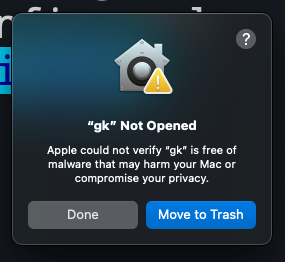
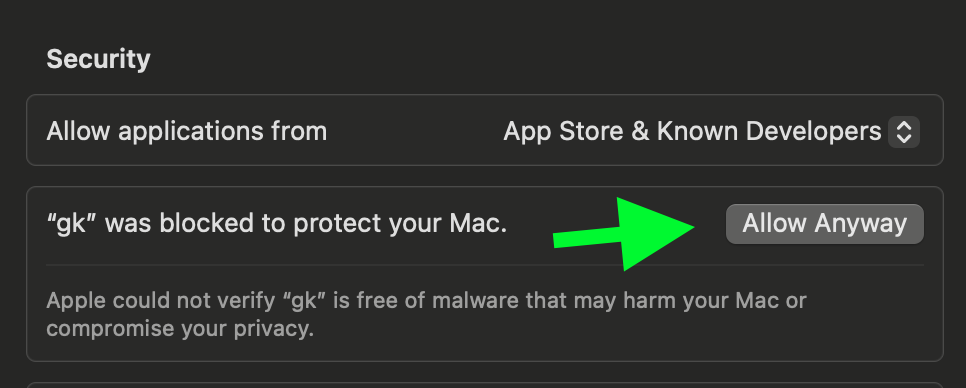
To fix this, go to Settings > Security & Privacy > General and click "Allow Anyway".
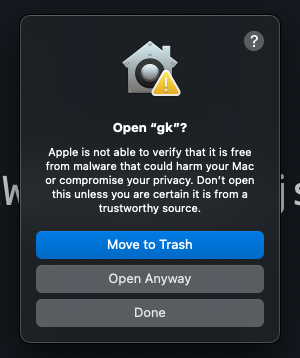
Try running gk setup again and then click "Open Anyway" to continue.
Preguntas sobre GitKraken MCP
¿Cómo agrego GitKraken MCP a Claude Code?
Ejecuta claude mcp add gk-cli -- npx -y @gitkraken/gk en tu terminal. Añade --scope user para que esté disponible en todos los proyectos.
¿Cómo agrego GitKraken MCP a Cursor?
Abre ~/.cursor/mcp.json y añade el servidor en mcpServers, usando la configuración de Cursor que se muestra en la sección de instalación de arriba.
¿Qué hace el MCP server de GitKraken?
Es un MCP server local que envuelve acciones de git, GitHub y Jira, y expone herramientas para que los LLM trabajen con las APIs y funcionalidades de GitKraken.
¿Cómo autentico la GitKraken CLI?
Ejecuta gk auth login para autenticarte con la plataforma de GitKraken; puedes añadir tokens de proveedores para servicios de hosting con gk provider.
¿Puede GitKraken generar mensajes de commit y pull requests con IA?
Sí, gk work commit --ai crea mensajes de commit con IA y gk work pr create --ai genera pull requests.
¿Soporta la GitKraken CLI múltiples repositorios a la vez?
Sí, los elementos de trabajo pueden incluir múltiples repositorios para que obtengas una experiencia de usuario similar a un monorepo entre ellos.