
Sube archivos a buckets de S3, Cloudflare R2 o Backblaze B2 y gestiona enlaces a través de un agente de IA.
También conocido como getaktar/cli, cli, @getaktar/cli
- Stars
- 2
- Herramientas
- —
- Descargas, 30 días
- 319
- Última versión
- 0.6.0
- Último commit
- 1 nov 2026
- Licencia
- MIT
¿Qué es Aktar MCP?
Aktar es un MCP server. Sube archivos a buckets de S3, Cloudflare R2 o Backblaze B2 y gestiona enlaces a través de un agente de IA.
Resumen generado a partir del README del proyecto
Acerca del MCP server de Aktar
Aktar ofrece una forma para que los desarrolladores gestionen la subida de archivos a buckets de S3, Cloudflare R2 o Backblaze B2 mediante un agente de IA. Al ejecutar el MCP server, los usuarios pueden conectar herramientas como Claude, Cursor o VS Code a su aplicación de escritorio Aktar existente en Mac o Windows. Esta configuración garantiza que las claves de almacenamiento y las credenciales sensibles permanezcan seguras dentro de la aplicación local en lugar de quedar expuestas al agente.
El servidor incluye una variedad de herramientas para interactuar con el almacenamiento en la nube, como upload_file, replace_file y search_uploads. Puede manejar tareas complejas como la creación de enlaces cortos mediante acortadores integrados, la generación de códigos QR o la producción de URLs presignadas temporales que expiran tras un tiempo determinado. Para mantener la seguridad, el servidor puede restringirse a directorios específicos usando el flag root y evita automáticamente la subida de archivos sensibles como llaves SSH, archivos .env o bases de datos de contraseñas.
Qué puedes hacer con él
- 1Subir archivos con metadatos específicosUn agente de IA puede subir un documento a una carpeta de destino específica con un nombre personalizado y una fecha de expiración.
Escrito a partir del README del proyecto. Cada caso de uso se verifica con una cita del mismo.
Cómo instalar Aktar MCP
Formatos verificados el 10 nov 2026Instalar Aktar MCP en Claude Code
$ claude mcp add cli -- npx -y @getaktar/cliInstalar Aktar MCP en Cursor
~/.cursor/mcp.json
{
  "mcpServers": {
    "cli": {
      "command": "npx",
      "args": [
        "-y",
        "@getaktar/cli"
      ]
    }
  }
}Instalar Aktar MCP en VS Code
.vscode/mcp.json
{
  "servers": {
    "cli": {
      "type": "stdio",
      "command": "npx",
      "args": [
        "-y",
        "@getaktar/cli"
      ]
    }
  }
}Instalar Aktar MCP en Claude Desktop
claude_desktop_config.json
{
  "mcpServers": {
    "cli": {
      "command": "npx",
      "args": [
        "-y",
        "@getaktar/cli"
      ]
    }
  }
}Instalar Aktar MCP en Codex
~/.codex/config.toml
[mcp_servers.cli]
command = "npx"
args = ["-y", "@getaktar/cli"]
Instalar Aktar MCP en Gemini CLI
~/.gemini/settings.json
{
  "mcpServers": {
    "cli": {
      "command": "npx",
      "args": [
        "-y",
        "@getaktar/cli"
      ]
    }
  }
}Verificaciones automáticas
Ejecutado 14 nov 2026Informe completo →Pasó nuestras verificaciones automáticas. Esto no es una auditoría de seguridad: lee el código y dale al servidor el acceso más limitado que necesite. Cómo funcionan las verificaciones

- Repositorio de origen vinculado y accesiblegetaktar/cli is public and reachablegithub.com/getaktar/cli ↗Aprobado
- El paquete cita este repositorio como fuente@getaktar/cli names getaktar/cli as sourcenpmjs.com/package/@getaktar/cli ↗Aprobado
- Procedencia de la compilación (atestación Sigstore)No build attestation published for this releaseNo verificado
- Licencia de código abierto (OSI)MITspdx.org/licenses/MIT.html ↗Aprobado
- Commit o lanzamiento en el último añoLast commit or release 2026-11-01github.com/getaktar/cli ↗Aprobado
- OpenSSF ScorecardNo verificado
- El nombre del paquete no es similar a un paquete popularNo popular package one edit away from @getaktar/cliAprobado
- Sin avisos críticos en el paquete ni en sus dependencias1 resolved dependencies checked; no critical advisoryosv.dev ↗Aprobado
- Sin instrucciones ocultas para el modelo0 tool descriptions and the README read; no override phrases, credential paths or hidden charactersAprobado
- Las herramientas destructivas están etiquetadasNo verificado
- El endpoint remoto responde al handshake MCPNo verificado
README
Ver en GitHub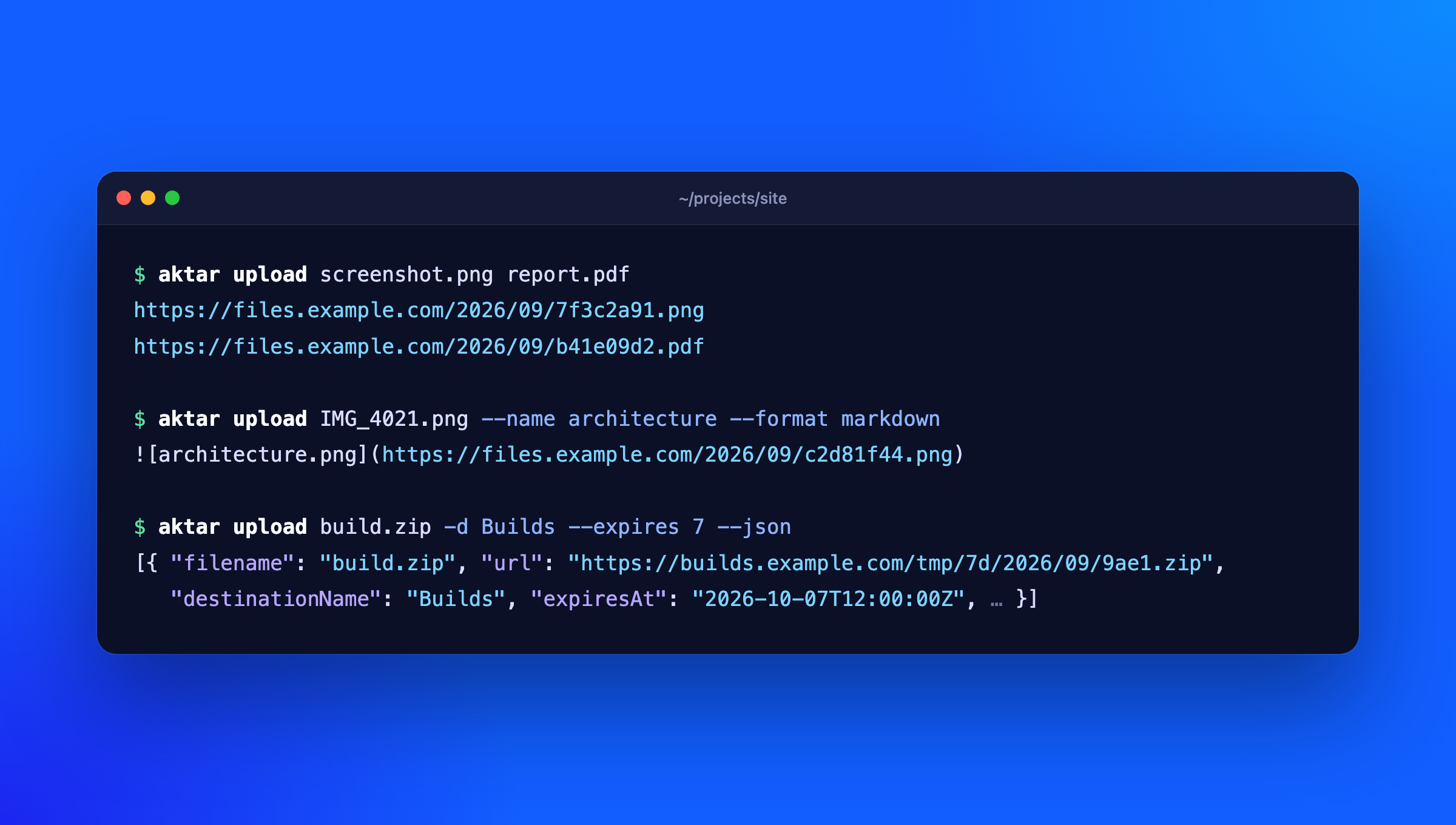
The aktar command talks to the Aktar app on your Mac or Windows PC, so it uses the destinations, keys, path templates and link settings you already set up there. Your storage keys never leave the app.
$ aktar upload screenshot.png
https://files.example.com/2026/09/7f3c2a91.png
Install
npm install -g @getaktar/cli
# or
brew install getaktar/tap/aktar-cli
Or run it without installing: npx @getaktar/cli upload file.png.
Requires Node.js 18 or later and Aktar for Mac 0.18.0 or Aktar for Windows 0.11.0 or later (earlier versions of the CLI work with Aktar for Mac 0.4.0 and later).
Connect to Aktar
- In Aktar, open Settings > Integrations and turn on Allow local connections.
- Copy the token shown there.
- Run:
aktar login
and paste the token when asked (avoid aktar login --token <token>: other programs can see command lines, and it stays in your shell history). It's checked against Aktar and saved to ~/.config/aktar/cli.json (%APPDATA%\aktar\cli.json on Windows), readable only by you. You can also pipe it in (pbpaste | aktar login) or set AKTAR_TOKEN (and AKTAR_PORT if you changed the port) instead.
Usage
aktar upload report.pdf                     # prints the link
aktar upload *.png -f markdown              # one Markdown image per file
aktar upload build.zip -d Builds            # pick a destination by name or ID
aktar upload notes.txt --folder docs/2026   # keep the name, upload into a folder
aktar upload IMG_4021.jpg --name cover      # upload as cover.jpg
aktar upload log.txt --expires 7            # delete after 7 days
aktar upload --clipboard                    # the file or image on the clipboard
aktar upload demo.mp4 --qr                  # the link and a QR code to open it on your phone
aktar upload talk.pdf --short               # a short link from the destination's link shortener
aktar upload photo.jpg --json               # full details as JSON

aktar status                                # which Aktar and destination you're connected to
aktar destinations                          # list destinations (* marks the selected one)
aktar history invoice -n 5                  # search recent uploads
aktar replace 0B6C2F8E-3D1A-4C55-9E2B-7A41D0C3E9F1 v2.png  # new file, same link
aktar replace docs/guide.pdf guide.pdf -d Docs  # replace a key in a destination's bucket
aktar qr https://example.com                # a QR code of any link or text
aktar qr 0B6C2F8E-3D1A-4C55-9E2B-7A41D0C3E9F1  # a QR code of an upload in history
aktar short 0B6C2F8E-3D1A-4C55-9E2B-7A41D0C3E9F1  # a short link for an upload in history
Without -d, files go to the destination selected in Aktar's menu bar. Uploads show up in Aktar's history like any other.
--format chooses what's printed: url (default), markdown, html, or custom (your template from Aktar). --expires takes 1, 7, 14 or 30 days and needs Aktar's auto-delete rules on that destination; without it, files are kept.
--name uploads a single file under another name: it's what {filename} and {ext} in the destination's path template become, and what Aktar's history shows. If the name has no extension, the file's own is added (--name cover uploads IMG_4021.jpg as cover.jpg); if it has one, it's used as given. With --folder, it's the name inside the folder.
If the same file (same contents, destination and expiry) is already in the bucket, Aktar doesn't upload it again and gives you the existing link. aktar prints the link as usual and notes it on stderr (aktar: photo.jpg: already uploaded, reused the existing link), so scripts reading stdout still get one link per file. This needs Aktar for Mac 0.10.0 or Windows 0.3.0.
Short links
If a destination has a link shortener set up in Aktar (Shlink, YOURLS, Kutt, Dub, Short.io or your own), Aktar shortens its links following that destination's rules, and aktar prints the short link. --format uses it too: the Markdown, HTML and custom formats come from Aktar with the short link in them.
--shortmakes a short link for this upload even if the destination's "Only shorten links longer than" rule would skip it. It fails if the destination has no link shortener.--no-shortmakes none this time.
If Aktar can't make the short link (the shortener is down, say), the upload still goes through: aktar prints the original link and notes it on stderr (aktar: talk.pdf: couldn't make a short link, printed the original link: ...).
aktar short <upload-id|link> makes a short link for an upload already in history, found by its ID, link or short link, and prints it. If it already has one, that's the one printed. --json prints the short link's details (provider, status, clicks when the shortener counts them), --qr adds its QR code. aktar history shows each upload's short link after its link.
Older versions of Aktar, and Aktar for Windows until it has short links, ignore --short and --no-short.
QR codes
aktar upload --qr prints a QR code under each link, so you can open it on your phone. The QR code is always of the link itself (the short link, if there is one), whatever --format prints. It's drawn black on white in the terminal, whatever its theme; when the output isn't a terminal, or NO_COLOR is set, it's drawn without colors (light modules as blocks), which phone cameras read on a light or dark background. --qr can't be combined with --json.
aktar qr <text> shows the QR code of any link or text; quote text with spaces. Given an upload ID from aktar history --json, it shows that upload's link (its short link, if it has one) and its QR code. --png <file> saves the QR code as a PNG instead:
aktar qr https://files.example.com/2026/09/7f3c2a91.png --png link.png
What Aktar does for you
The app does the work per destination, so the CLI needs nothing extra for it:
- Converting images to WebP or AVIF, if the destination is set to
{md5}and{sha256}in path templates, to name files by their contents- Big files: past 5 GB, Aktar uploads in parts and resumes after a dropped connection.
aktarstreams the file to the app, so its size doesn't matter
The link aktar prints is the one for the file as stored, after any conversion.
JSON output
aktar upload --json prints an array with one entry per uploaded file:
[
  {
    "id": "0B6C…",
    "filename": "photo.jpg",
    "objectKey": "2026/09/7f3c2a91.jpg",
    "url": "https://files.example.com/2026/09/7f3c2a91.jpg",
    "shortUrl": null,
    "destinationId": "5D1A…",
    "destinationName": "Screenshots",
    "mimeType": "image/jpeg",
    "size": 482113,
    "createdAt": "2026-09-30T12:00:00Z",
    "expiresAt": null,
    "formats": { "url": "…", "markdown": "…", "html": "…", "custom": "…" },
    "reused": false
  }
]
reused is true when nothing was uploaded because the file was already there; older versions of Aktar leave it out. shortUrl is the upload's short link, or null when it has none; formats already use it. When Aktar couldn't make the short link, shortLinkError says why. aktar history --json has shortUrl too.
Exit codes
| Code | Meaning |
|---|---|
| 0 | Everything worked |
| 1 | At least one upload or request failed (the others still went through) |
| 2 | Bad arguments, or a file that doesn't exist (nothing was uploaded) |
| 3 | Not logged in, Aktar isn't running, its local API is off, the token is wrong, or the app on the port couldn't prove it's Aktar (or is too old to) |
AI agents (MCP and skill)
MCP server
aktar mcp runs a Model Context Protocol server, so Claude, Cursor, VS Code, Codex and other agents can upload through Aktar, find past uploads and make links. Connect Aktar first (aktar login), then add it to your agent with the folder it may upload files from:
claude mcp add aktar -- aktar mcp --root ~/Projects    # Claude Code
codex mcp add aktar -- aktar mcp --root ~/Projects     # Codex
For Claude Desktop, Cursor, VS Code and others that take a JSON config:
{
  "mcpServers": {
    "aktar": { "command": "aktar", "args": ["mcp", "--root", "/Users/you/Projects"] }
  }
}
Without a global install, use "command": "npx", "args": ["-y", "@getaktar/cli", "mcp", "--root", "/Users/you/Projects"].
| Tool | What it does |
|---|---|
upload_file |
Upload a file (destination, name, folder, expiry, short link optional) and return its link, Markdown and HTML |
upload_clipboard |
Upload what's on the clipboard (left out with --root) |
replace_file |
Write a new file over an upload or any file in a bucket, keeping its link (only with --allow-replace or --allow-delete; Mac 0.14.0 / Windows 0.7.0) |
create_short_link |
A short link for an upload, from its destination's link shortener |
search_uploads |
Search upload history (with each upload's short link) |
list_destinations |
Destinations and what file types each is used for |
list_bucket |
Browse a bucket's folders and files |
create_temporary_link |
A link that stops working after a while (presigned URL). This gives access: anyone with the link can download the file until it expires, even from a private bucket. At most 60 minutes unless --max-link-minutes allows more |
get_thumbnail |
A preview image of an upload (Mac 0.13.0 / Windows 0.6.0) |
list_watched_folders |
Watched folders and their status |
get_status |
Check the connection |
delete_upload |
Delete an upload from its bucket (only with --allow-delete) |
Uploading publishes a file, so keep an eye on what your agent sends. Your agent asks before calling a tool unless you allow it, and the server limits what it can reach:
--root <folder>: only upload files from this folder (repeat for more). Paths are resolved, symlinks included, before they're checked. Without--root, files come only from the folder the server runs in (agents usually start it in your project). If that's your home folder or the top of the disk, as some apps do, local files aren't uploaded at all until you add--root.--root ~or--root /allow more, if you really want that.- Secrets are never uploaded, wherever they are: SSH and private keys (
id_rsa,id_ed25519,*.pem,*.p12,*.pfx...),.envfiles,~/.ssh,~/.gnupg,~/.aws,~/.azure,~/.config/gcloud,~/.kube,~/.docker,~/.netrc,~/.npmrc,~/.pypirc,~/.git-credentials, Aktar's own config, the Keychain, browser profiles and password databases (*.kdbx). Files with several hard links aren't uploaded either. To share one of these, upload it yourself withaktar upload. --read-only: only the tools that change nothing in a bucket (search, list, temporary links, thumbnails).--allow-replace: also offerreplace_file, which overwrites files in a bucket. It's left out by default because the old contents are gone, like a delete.--allow-delete: also offerdelete_upload(andreplace_file).--max-link-minutes <n>: letcreate_temporary_linkmake links that work for up tonminutes (default 60, at most 10080, 7 days).--log <file>: append each tool call (time, tool, arguments, result) to a file only you can read, to see later what an agent did.
claude mcp add aktar -- aktar mcp --root ~/Projects --root ~/Desktop --allow-replace
Tool results start with a note that file names, keys and messages inside come from files and buckets, so agents treat them as data rather than instructions; control and text-direction characters are removed from them.
The server speaks both the current per-request protocol (2026-07-28) and the earlier initialize versions (2024-11-05 to 2025-11-25).
Agent skill
Agents that use skills but not MCP can use the CLI directly. aktar skill prints a SKILL.md that teaches them how:
mkdir -p ~/.claude/skills/aktar && aktar skill > ~/.claude/skills/aktar/SKILL.md
Checking it's Aktar
Before sending the token, aktar asks the app on the port to prove it has the same token (without sending it), so if Aktar isn't running and another program is listening on its port, that program gets neither the token nor your files. This needs Aktar for Mac 0.18.0 or Aktar for Windows 0.11.0 or later; with an older Aktar, aktar stops and asks you to update.
Typora
In Typora, open Settings > Image > Image Upload, choose Custom Command and enter:
aktar upload
Typora passes the image paths and reads one link per line. Click Test Uploader to check it.
Links
- Website: https://getaktar.com/cli/
- Aktar for Mac and Windows: https://getaktar.com
- Homebrew:
brew install getaktar/tap/aktar-cli
License
MIT
Preguntas sobre Aktar MCP
¿Cómo agrego Aktar MCP a Claude Code?
Ejecuta claude mcp add cli -- npx -y @getaktar/cli en tu terminal. Añade --scope user para que esté disponible en todos los proyectos.
¿Cómo agrego Aktar MCP a Cursor?
Abre ~/.cursor/mcp.json y añade el servidor en mcpServers, usando la configuración de Cursor que se muestra en la sección de instalación de arriba.
¿Cómo conecto el MCP server a Aktar?
Primero, conéctate mediante la CLI usando aktar login después de habilitar 'Allow local connections' en los ajustes de la aplicación Aktar.
¿Puede el agente de IA subir archivos sensibles como llaves SSH?
No, el servidor está diseñado para nunca subir secretos como llaves SSH, archivos .env o archivos de configuración.
¿Qué pasa si subo un archivo que ya existe en el bucket?
Aktar no lo subirá de nuevo y, en su lugar, te proporcionará el enlace existente.