
MCP server de client-cli
Una interfaz de línea de comandos que actúa como cliente MCP para ejecutar prompts de LLM e interactuar con servidores compatibles.
También conocido como adhikasp/mcp-client-cli
- Stars
- 675
- Herramientas
- —
- Descargas, 30 días
- —
- Última versión
- —
- Último commit
- 2 dic 2025
- Licencia
- MIT
¿Qué es client-cli MCP?
client-cli es un MCP server. Una interfaz de línea de comandos que actúa como cliente MCP para ejecutar prompts de LLM e interactuar con servidores compatibles.
Resumen generado a partir del README del proyecto
Acerca del MCP server de client-cli
Esta interfaz de línea de comandos te permite ejecutar prompts de LLM e interactuar con servidores Model Context Protocol directamente desde tu terminal. Funciona como una alternativa flexible a Claude Desktop, permitiendo a los desarrolladores conectarse a cualquier MCP server compatible. Los usuarios pueden configurar su entorno mediante un archivo JSON para especificar proveedores de LLM como OpenAI, Groq o modelos locales que se ejecuten a través de llama.cpp.
La herramienta soporta una amplia gama de flujos de trabajo, incluyendo el envío de la salida de un comando o archivos de imagen directamente a los prompts para su análisis. Cuenta con soporte integrado para el contenido del portapapeles en Windows, macOS y Linux, lo que permite procesar rápidamente texto copiado o capturas de pantalla. Los desarrolladores pueden gestionar la ejecución de herramientas mediante prompts de confirmación o saltárselos usando flags específicos para scripts automatizados.
Más allá de consultas simples, el cliente incluye plantillas de prompts para tareas comunes como revisar cambios de git o resumir videos de YouTube. También mantiene el estado de la conversación, lo que permite a los usuarios continuar diálogos previos con un prefijo sencillo. Esta configuración proporciona una forma altamente personalizable de integrar herramientas externas como brave-search o fetch en un flujo de trabajo de IA basado en terminal.
Qué puedes hacer con él
- 1Procesar datos del portapapeles al instanteEnvía texto o imágenes que tengas en el portapapeles de tu sistema directamente al LLM para su procesamiento.
Escrito a partir del README del proyecto. Cada caso de uso se verifica con una cita del mismo.
Configuración
BRAVE_API_KEY
| Nombre | Descripción | Tipo |
|---|---|---|
| BRAVE_API_KEY | — |
Verificaciones automáticas
Ejecutado 15 nov 2026Informe completo →Aún no verificado. Un servidor necesita una puntuación de 80, ningún hallazgo grave y suficientes datos para que podamos revisarlo. Cómo funcionan las verificaciones · Qué corregir para obtener más puntos

- Repositorio de origen vinculado y accesibleadhikasp/mcp-client-cli is public and reachablegithub.com/adhikasp/mcp-client-cli ↗Aprobado
- El paquete indica este repositorio como su origenNo verificado
- Procedencia de la compilación (atestación de Sigstore)No verificado
- Licencia de código abierto (OSI)MITspdx.org/licenses/MIT.html ↗Aprobado
- Commit o lanzamiento en el último añoLast commit or release 2025-12-02github.com/adhikasp/mcp-client-cli ↗Aprobado
- OpenSSF ScorecardNo verificado
- El nombre del paquete no es similar a un paquete popularNo verificado
- No hay avisos críticos en el paquete ni en sus dependenciasNo verificado
- Sin instrucciones ocultas para el modelo0 tool descriptions and the README read; no override phrases, credential paths or hidden charactersAprobado
- Las herramientas destructivas están etiquetadasNo verificado
- El endpoint remoto responde al handshake de MCPNo verificado
README
Ver en GitHubMCP CLI client
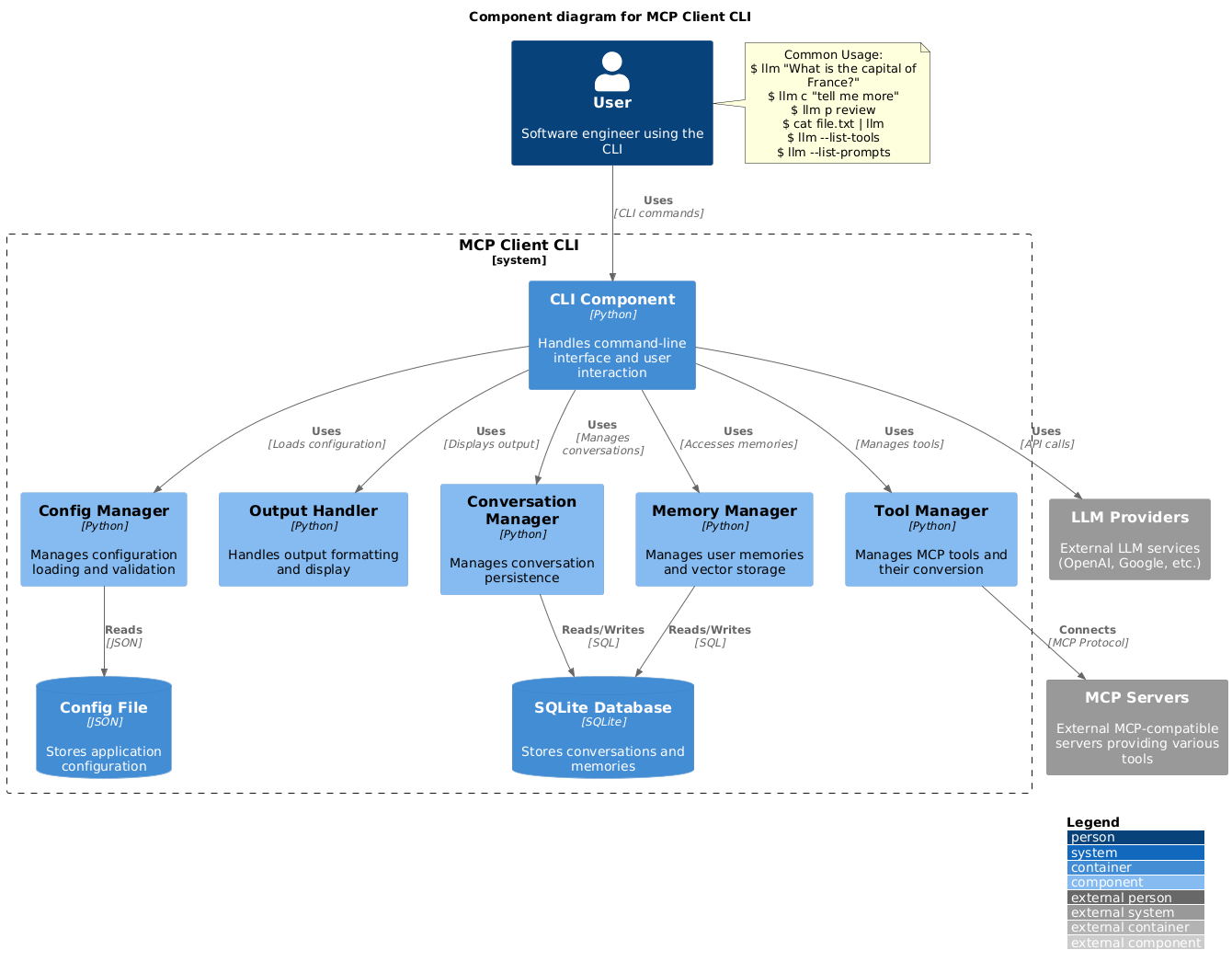
A simple CLI program to run LLM prompt and implement Model Context Protocol (MCP) client.
You can use any MCP-compatible servers from the convenience of your terminal.
This act as alternative client beside Claude Desktop. Additionally you can use any LLM provider like OpenAI, Groq, or local LLM model via llama.
Setup
-
Install via pip:
pip install mcp-client-cli -
Create a
~/.llm/config.jsonfile to configure your LLM and MCP servers:{ "systemPrompt": "You are an AI assistant helping a software engineer...", "llm": { "provider": "openai", "model": "gpt-4", "api_key": "your-openai-api-key", "temperature": 0.7, "base_url": "https://api.openai.com/v1" // Optional, for OpenRouter or other providers }, "mcpServers": { "fetch": { "command": "uvx", "args": ["mcp-server-fetch"], "requires_confirmation": ["fetch"], "enabled": true, // Optional, defaults to true "exclude_tools": [] // Optional, list of tool names to exclude }, "brave-search": { "command": "npx", "args": ["-y", "@modelcontextprotocol/server-brave-search"], "env": { "BRAVE_API_KEY": "your-brave-api-key" }, "requires_confirmation": ["brave_web_search"] }, "youtube": { "command": "uvx", "args": ["--from", "git+https://github.com/adhikasp/mcp-youtube", "mcp-youtube"] } } }Note:
- See CONFIG.md for complete documentation of the configuration format
- Use
requires_confirmationto specify which tools need user confirmation before execution - The LLM API key can also be set via environment variables
LLM_API_KEYorOPENAI_API_KEY - The config file can be placed in either
~/.llm/config.jsonor$PWD/.llm/config.json - You can comment the JSON config file with
//if you like to switch around the configuration
-
Run the CLI:
llm "What is the capital city of North Sumatra?"
Usage
Basic Usage
$ llm What is the capital city of North Sumatra?
The capital city of North Sumatra is Medan.
You can omit the quotes, but be careful with bash special characters like &, |, ; that might be interpreted by your shell.
You can also pipe input from other commands or files:
$ echo "What is the capital city of North Sumatra?" | llm
The capital city of North Sumatra is Medan.

$ echo "Given a location, tell me its capital city." > instructions.txt
$ cat instruction.txt | llm "West Java"
The capital city of West Java is Bandung.
Image Input
You can pipe image files to analyze them with multimodal LLMs:
$ cat image.jpg | llm "What do you see in this image?"
[LLM will analyze and describe the image]

$ cat screenshot.png | llm "Is there any error in this screenshot?"
[LLM will analyze the screenshot and point out any errors]
Using Prompt Templates
You can use predefined prompt templates by using the p prefix followed by the template name and its arguments:
# List available prompt templates
$ llm --list-prompts

# Use a template
$ llm p review  # Review git changes
$ llm p commit  # Generate commit message
$ llm p yt url=https://youtube.com/...  # Summarize YouTube video
Triggering a tool
$ llm What is the top article on hackernews today?

================================== Ai Message ==================================
Tool Calls:
  brave_web_search (call_eXmFQizLUp8TKBgPtgFo71et)
 Call ID: call_eXmFQizLUp8TKBgPtgFo71et
  Args:
    query: site:news.ycombinator.com
    count: 1
Brave Search MCP Server running on stdio

# If the tool requires confirmation, you'll be prompted:
Confirm tool call? [y/n]: y

================================== Ai Message ==================================
Tool Calls:
  fetch (call_xH32S0QKqMfudgN1ZGV6vH1P)
 Call ID: call_xH32S0QKqMfudgN1ZGV6vH1P
  Args:
    url: https://news.ycombinator.com/
================================= Tool Message =================================
Name: fetch

[TextContent(type='text', text='Contents [REDACTED]]
================================== Ai Message ==================================

The top article on Hacker News today is:

### [Why pipes sometimes get "stuck": buffering](https://jvns.ca)
- **Points:** 31
- **Posted by:** tanelpoder
- **Posted:** 1 hour ago

You can view the full list of articles on [Hacker News](https://news.ycombinator.com/)
To bypass tool confirmation requirements, use the --no-confirmations flag:
$ llm --no-confirmations "What is the top article on hackernews today?"
To use in bash scripts, add the --no-intermediates, so it doesn't print intermediate messages, only the concluding end message.
$ llm --no-intermediates "What is the time in Tokyo right now?"
Continuation
Add a c prefix to your message to continue the last conversation.
$ llm asldkfjasdfkl
It seems like your message might have been a typo or an error. Could you please clarify or provide more details about what you need help with?
$ llm c what did i say previously?
You previously typed "asldkfjasdfkl," which appears to be a random string of characters. If you meant to ask something specific or if you have a question, please let me know!
Clipboard Support
You can use content from your clipboard using the cb command:
# After copying text to clipboard
$ llm cb
[LLM will process the clipboard text]

$ llm cb "What language is this code written in?"
[LLM will analyze the clipboard text with your question]

# After copying an image to clipboard
$ llm cb "What do you see in this image?"
[LLM will analyze the clipboard image]

# You can combine it with continuation
$ llm cb c "Tell me more about what you see"
[LLM will continue the conversation about the clipboard content]
The clipboard feature works in:
- Native Windows/macOS/Linux environments
- Windows: Uses PowerShell
- macOS: Uses
pbpastefor text,pngpastefor images (optional) - Linux: Uses
xclip(required for clipboard support)
- Windows Subsystem for Linux (WSL)
- Accesses the Windows clipboard through PowerShell
- Works with both text and images
- Make sure you have access to
powershell.exefrom WSL
Required tools for clipboard support:
- Windows: PowerShell (built-in)
- macOS:
pbpaste(built-in) for textpngpaste(optional) for images:brew install pngpaste
- Linux:
xclip:sudo apt install xclipor equivalent
The CLI automatically detects if the clipboard content is text or image and handles it appropriately.
Additional Options
$ llm --list-tools                # List all available tools
$ llm --list-prompts              # List available prompt templates
$ llm --no-tools                  # Run without any tools
$ llm --force-refresh             # Force refresh tool capabilities cache
$ llm --text-only                 # Output raw text without markdown formatting
$ llm --show-memories             # Show user memories
$ llm --model gpt-4               # Override the model specified in config
Contributing
Feel free to submit issues and pull requests for improvements or bug fixes.
Preguntas sobre client-cli MCP
¿Puedo usar LLMs locales con este cliente?
Sí, puedes usar modelos LLM locales a través de llama.cpp.
¿Cómo puedo omitir los prompts de confirmación de herramientas?
Usa el flag --no-confirmations para omitir el requisito de confirmación del usuario antes de la ejecución de herramientas.
¿Soporta entrada de imágenes?
Sí, puedes pasar archivos de imagen al CLI mediante un pipe para analizarlos con LLMs multimodales.
¿Puedo usar contenido de mi portapapeles?
Sí, el comando cb te permite procesar texto o imágenes directamente desde tu portapapeles.