
Traduce páginas web, PDFs, EPUBs y subtítulos de YouTube de forma local utilizando el motor integrado de Chrome o Ollama para mayor privacidad.
También conocido como 0Smallcat0/OpenRead
- Stars
- 0
- Herramientas
- —
- Descargas, 30 días
- —
- Última versión
- —
- Último commit
- 10 nov 2026
- Licencia
- MIT
¿Qué es OpenRead MCP?
OpenRead es un MCP server. Traduce páginas web, PDFs, EPUBs y subtítulos de YouTube de forma local utilizando el motor integrado de Chrome o Ollama para mayor privacidad.
Resumen generado a partir del README del proyecto
Acerca del MCP server de OpenRead
Traducir páginas web, PDFs, EPUBs y subtítulos de YouTube de forma local es lo que OpenRead permite a los usuarios que priorizan la privacidad y el ahorro de costes. Funciona como una extensión de navegador para Chrome y Edge, utilizando el motor de traducción integrado que ya tiene el navegador para garantizar que ningún dato salga de tu máquina y que no se requiera ninguna suscripción. Para los usuarios que necesitan capacidades lingüísticas más avanzadas, el sistema es compatible con Ollama para la ejecución de modelos locales o permite proporcionar tu propia API key para acceder a modelos externos.
Los desarrolladores pueden integrar estas capacidades de traducción en flujos de trabajo automatizados utilizando el OpenRead MCP server o la interfaz de línea de comandos. Aunque el motor predeterminado de Chrome es rápido y gratuito, el uso de Ollama o una API key personalizada permite una mejor comprensión del contexto y puntuaciones de calidad más altas. La herramienta está diseñada para ofrecer vistas bilingües, colocando las traducciones directamente debajo del texto original para mantener la legibilidad y la precisión en diversos tipos de archivos, incluyendo artículos técnicos y libros digitales.
Qué puedes hacer con él
- 1Traducir documentos locales de forma privadaUn desarrollador puede traducir PDFs o archivos EPUB sensibles en su propia máquina sin tener que subirlos a un servicio en la nube.
- 2Automatizar la traducción mediante MCPUn agente de IA puede utilizar el OpenRead MCP server para traducir cadenas de texto o archivos directamente dentro de un entorno de desarrollo.
Escrito a partir del README del proyecto. Cada caso de uso se verifica con una cita del mismo.
Cómo instalar OpenRead MCP
Formatos verificados el 10 nov 2026Añadir a CursorAñadir a GooseInstalar OpenRead MCP en Claude Code
$ claude mcp add openread -- npx -y openreadInstalar OpenRead MCP en Cursor
~/.cursor/mcp.json
{
  "mcpServers": {
    "openread": {
      "command": "npx",
      "args": [
        "-y",
        "openread"
      ]
    }
  }
}Instalar OpenRead MCP en VS Code
.vscode/mcp.json
{
  "servers": {
    "openread": {
      "type": "stdio",
      "command": "npx",
      "args": [
        "-y",
        "openread"
      ]
    }
  }
}Instalar OpenRead MCP en VS Code CLI
$ code --add-mcp '{"name":"openread","type":"stdio","command":"npx","args":["-y","openread"]}'Instalar OpenRead MCP en Claude Desktop
claude_desktop_config.json
{
  "mcpServers": {
    "openread": {
      "command": "npx",
      "args": [
        "-y",
        "openread"
      ]
    }
  }
}Instalar OpenRead MCP en Codex
$ codex mcp add openread -- npx -y openreadInstalar OpenRead MCP en Codex config.toml
~/.codex/config.toml
[mcp_servers.openread]
command = "npx"
args = ["-y", "openread"]
Instalar OpenRead MCP en Gemini CLI
$ gemini mcp add -s user openread npx -- -y openreadInstalar OpenRead MCP en Gemini settings.json
~/.gemini/settings.json
{
  "mcpServers": {
    "openread": {
      "command": "npx",
      "args": [
        "-y",
        "openread"
      ]
    }
  }
}Verificaciones automáticas
Ejecutado 15 nov 2026Informe completo →Pasó nuestras verificaciones automáticas. Esto no es una auditoría de seguridad: lee el código y dale al servidor el acceso más limitado que necesite. Cómo funcionan las verificaciones

- Repositorio de origen vinculado y accesible0smallcat0/openread is public and reachablegithub.com/0smallcat0/openread ↗Aprobado
- El paquete indica este repositorio como su origenopenread names 0smallcat0/openread as sourcenpmjs.com/package/openread ↗Aprobado
- Procedencia de la compilación (atestación de Sigstore)Sigstore attestation for openreadnpmjs.com/package/openread/v/2.24.0#provenance ↗Aprobado
- Licencia de código abierto (OSI)MITspdx.org/licenses/MIT.html ↗Aprobado
- Commit o lanzamiento en el último añoLast commit or release 2026-11-10github.com/0smallcat0/openread ↗Aprobado
- OpenSSF ScorecardNo verificado
- El nombre del paquete no es similar a un paquete popularNo popular package one edit away from openreadAprobado
- No hay avisos críticos en el paquete ni en sus dependenciasNo verificado
- Sin instrucciones ocultas para el modelo0 tool descriptions and the README read; no override phrases, credential paths or hidden charactersAprobado
- Las herramientas destructivas están etiquetadasNo verificado
- El endpoint remoto responde al handshake de MCPNo verificado
README
Ver en GitHubOpenRead
Bilingual translation for web pages, PDFs, books and YouTube captions — free, with no account and no quota. The default engine is the translator Chrome already ships, running on your own machine, so there is no key to get and nothing to pay. Bring your own API key if you want a stronger model.
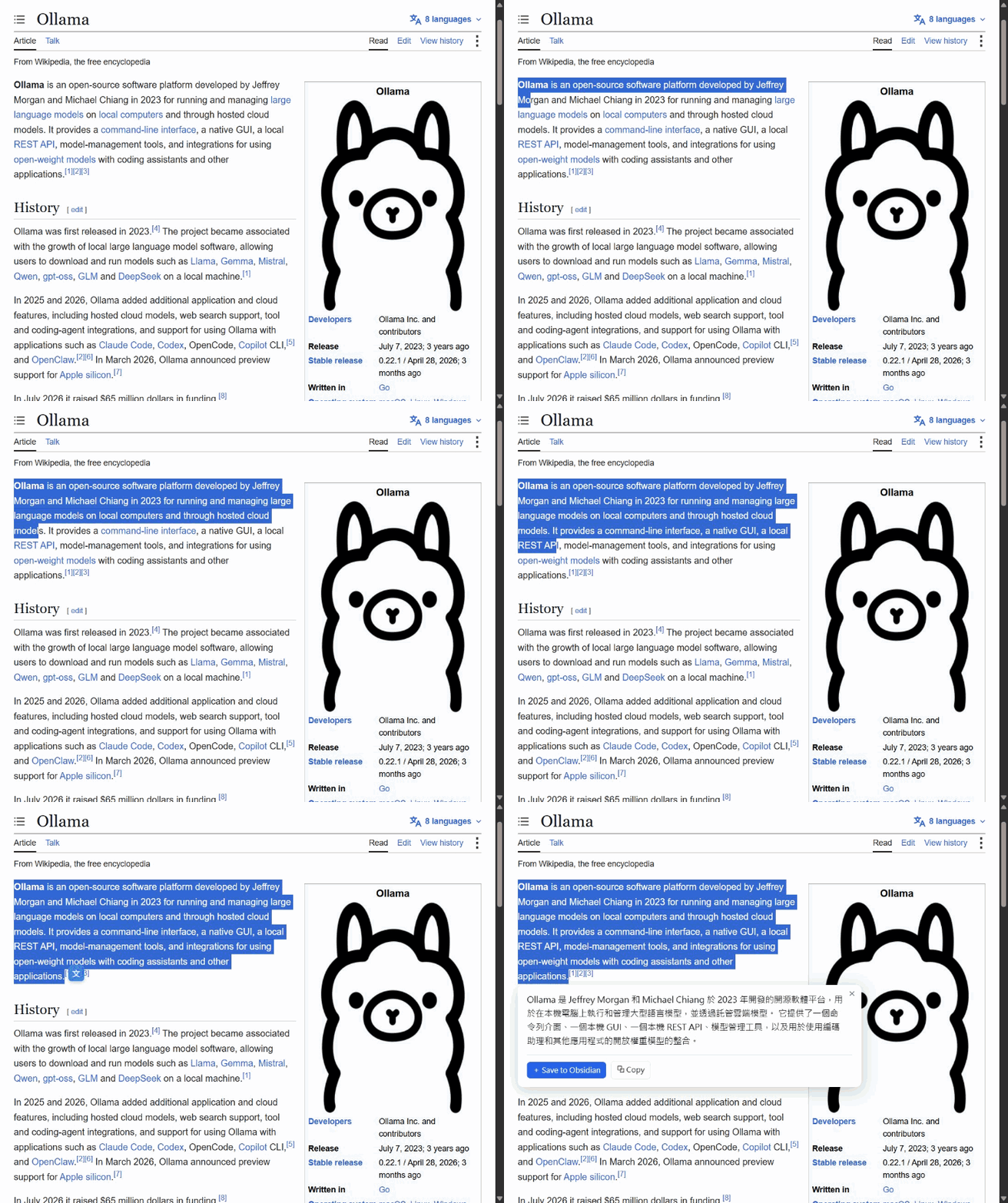
Real time, unedited, on the default engine — nothing installed.


Why
- Free, and it stays free. No sign-in, no daily limit, no paid tier. The default engine costs nothing to run because it runs on your computer, not on a server someone has to pay for.
- Some things cannot go in a cloud translator. Unpublished drafts, contracts, medical records, anything under NDA. The built-in engine and Ollama both run on your own machine; your own API key, if you add one, sends text only to the address you name.
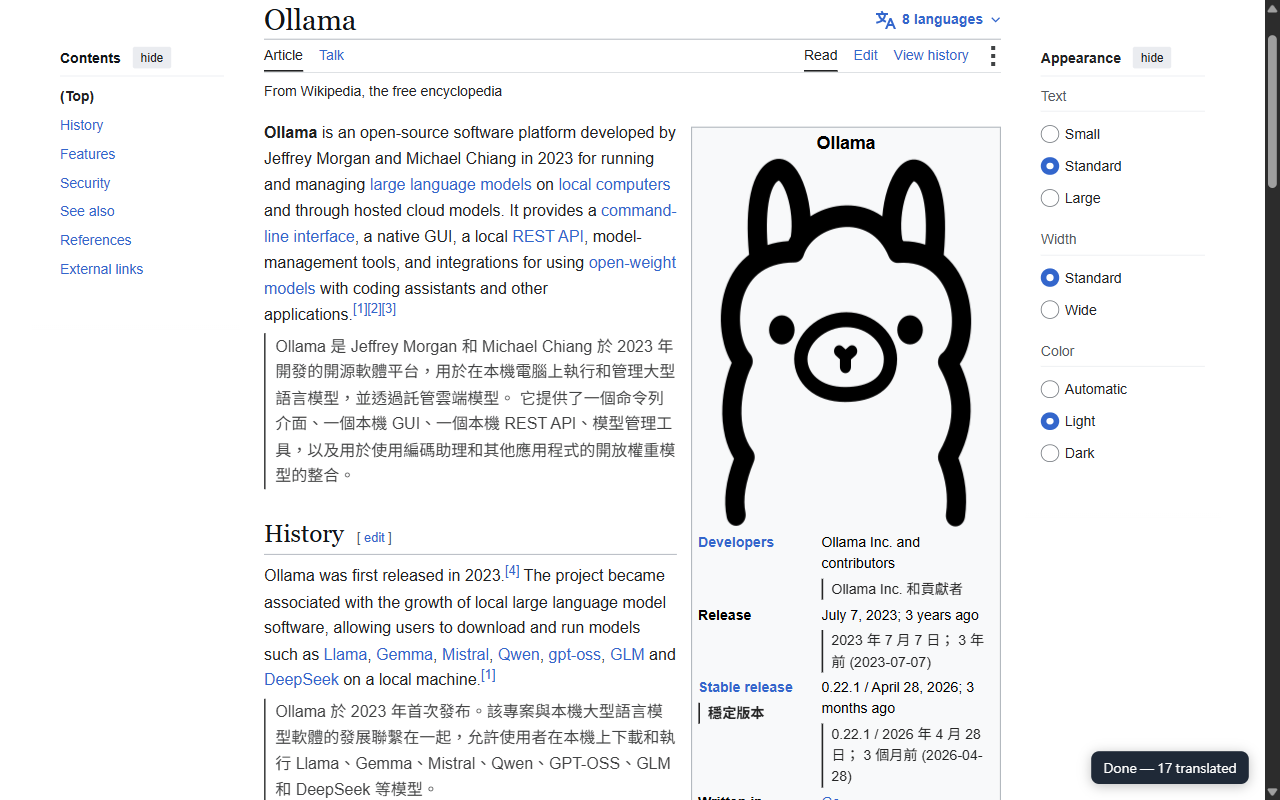
- Bilingual, not replaced. The translation goes under each paragraph, so a sentence that looks wrong can be checked against the original instead of taken on faith.
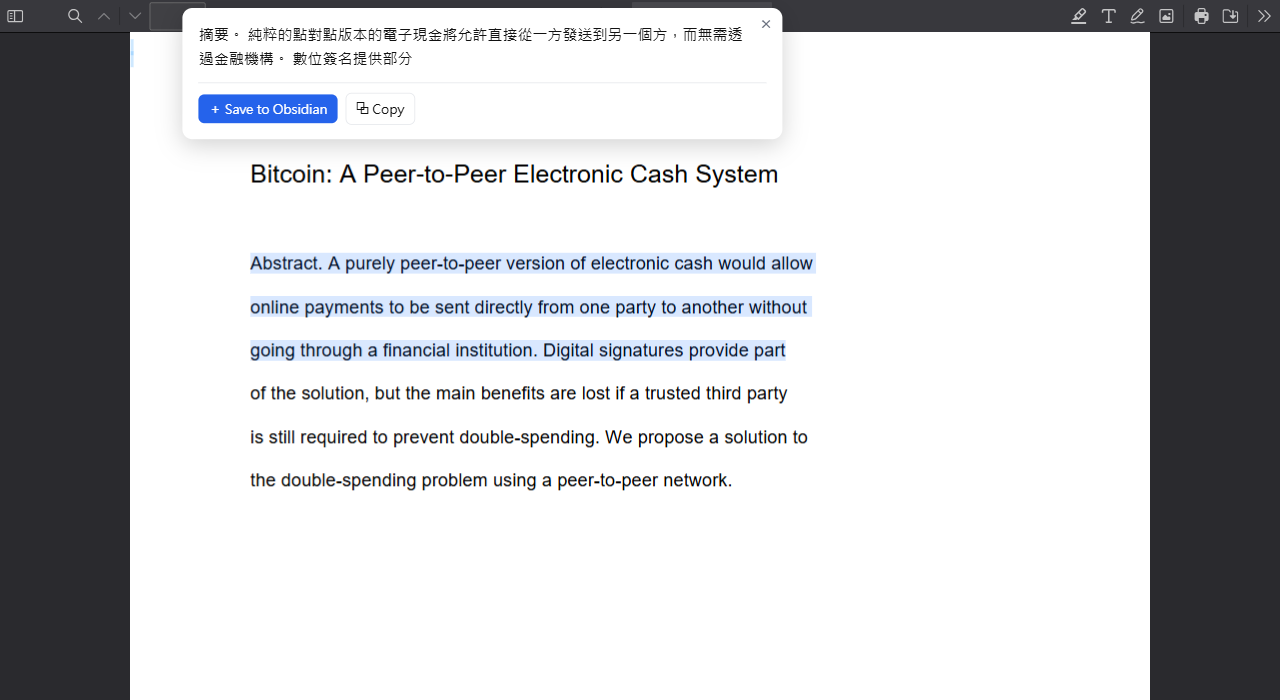
- PDFs too. Papers and specs open in a bundled viewer where selecting text works the same as on a web page — and a whole paper translates page by page, with the layout left alone.
- And EPUBs. A book opens in a reader of its own, with its contents, its pictures and your place in it kept. Ask for a translation once and it follows you from chapter to chapter.
- And YouTube. Turn on CC and every caption line shows with its translation under it. Auto-generated captions are joined back into sentences before they are translated.
- Traditional Chinese that reads like Taiwan. Most tools translate into
Simplified and convert character by character, which produces
界面,公裡,數據庫where a Taiwanese reader expects介面,公里,資料庫. OpenRead converts at the phrase level and corrects the vocabulary on the way out.
Install
⬇ Add to Chrome from the Chrome Web Store. One click, and it updates itself.
If you would rather not install from the store,
download the latest release,
unzip it, open chrome://extensions, turn on Developer mode, click
Load unpacked, and pick the unzipped folder. The same package works in
Edge, from edge://extensions.
Either way, that is the whole setup. OpenRead uses Chrome's own on-device translator, whose language pack Chrome downloads once per language pair — about 350 MB, measured at 82 seconds on a 4 MB/s connection. That download starts the moment the extension is installed rather than the first time you press translate, and the extension holds it open until it lands: Chrome does not resume an interrupted one, it waits three minutes and then starts over. The popup says whether yours is ready. After it arrives, a page takes about two seconds.
What it needs, and where it stops
- Chrome 138 or later, on desktop. The built-in translator is Chrome's, not
this extension's, so a browser without it has nothing to run on. Edge
works — measured on Edge 151, where the translator is there and a cold
first translation takes about twenty seconds — with one difference: Edge has
already claimed the three suggested shortcuts for itself, so it registers
them unbound. Everything is still reachable from the right-click menu and the
popup, and the keys can be assigned by hand at
edge://extensions/shortcuts. Firefox is not supported, and the honest reason is that it has no equivalent API: the only engine left there is Ollama, which means a server and a five-gigabyte model — the opposite of what this is for. - Thirty-nine target languages, every one probed against a real Chrome rather than taken from documentation. It starts on your browser's own language; change it in the popup. The source language is whatever the page is in — that side is not a list.
- Three settings for how it looks: the original beside the translation or the translation alone; a line, nothing, a dashed underline or a tinted background; smaller, the same, or larger. They apply to a page you are already looking at, without re-translating it.
- Chrome decides which pairs exist. It downloads packs per language pair, and a pair it has no pack for is one the built-in engine cannot do. When that happens OpenRead falls back to Ollama if you run it; if you do not, it says so and points you at Your own API key in the popup, which has no pairs to run out of.
Use it
- Whole page — right-click → Translate this page with OpenRead, or the button in the popup. What you can see is translated first, and the page keeps up on its own as you scroll and as it loads more, so an article or a feed needs one press rather than one per screen. Content inside an iframe — an embedded document, a comment thread — is translated too; an ad slot in one is not, on the strength of what is in the frame rather than where it sits. A badge counts progress and offers Stop. Do it again to put the page back.
- Without asking — in the popup, set Translate automatically to Pages in another language and they translate themselves as they load. Off by default, and any site can be excluded with one checkbox.
- One paragraph — hold Alt and point at it. The paragraph that stopped you, without a drag and without rewriting the page. Remappable to Ctrl or Shift, or off, in the popup.
- What you are writing — press
Ctrl+Shift+Kin any text box and it is replaced with its translation. Its own output language in the popup, English by default.Ctrl+Ztakes it back. - One selection — select text, click the floating 文, or press
Ctrl+Shift+Y. Escape closes the panel. - Names it keeps getting wrong — list them in the popup, one a line.
OpenReadon its own keeps the name as written;bug = 瑕疵pins how a term is translated. The built-in engine takes no prompt, so the term is held out of the sentence and put back after. - A paper — open any
.pdfand it lands in the bundled viewer, where selecting text works exactly as it does on a web page. Press translate and each page's translation is placed under the page itself, so the layout, the figures and the equations stay as the author set them. For a PDF already on your disk, turn on Allow access to file URLs inchrome://extensions→ Details first; Chrome withholdsfile://from every extension until you do. - A book — press Open an EPUB… in the popup, then choose the file or drop it onto the page. Contents down the side, Next and Previous in the toolbar, and your place kept per book, so closing the tab is not losing it. Press Translate once and every chapter after it arrives translated. The book is read out of the file in your hands: nothing is uploaded, and nothing inside it is fetched from anywhere — a picture comes from the archive, and a chapter that points at a remote image simply does not get one.
- A video — on YouTube, turn captions on with CC and each line shows with its translation under it, inside the player. Auto-generated captions, which arrive one word at a time with no punctuation, are put back into sentences at the speaker's pauses first, so what gets translated is a sentence rather than a fragment. Only the next minute and a half is translated, as the video plays — on your own API key, a two-hour lecture costs what you watch of it. Captions already in your language, YouTube's own translation included, are left as they are. Bilingual YouTube captions in the popup turns it off.
| The whole page, bilingual | A paper, in the bundled PDF viewer |
|---|---|
 |
 |
Save to Obsidian
Any translation can go into your Obsidian vault as
Markdown, in one tap, through an obsidian://new URI — no extra permissions
and no server:
---
title: 'Ollama'
source: 'Wikipedia'
url: https://en.wikipedia.org/wiki/Ollama
captured: 2026-08-06T03:41:00.000Z
from: en
to: 'Traditional Chinese'
status: raw
tags: [openread]
---

## Original

> Ollama is an open-source software platform…

## Translation

Ollama 是 Jeffrey Morgan 和 Michael Chiang 於 2023 年開發的開源軟體平台…
status: raw is a deliberate handoff: a stronger downstream model can pick up
the unprocessed captures, synthesize them, and flip the flag. OpenRead does the
cheap, reliable part on-device and leaves the expensive part to something whose
job it is.
Without a browser
The same pipeline as a command and as an MCP server, so a script or an agent
can translate locally too. Outside the browser there is no built-in
translator, so these run on Ollama — ollama pull qwen3
first:
npx openread "The quick brown fox jumps over the lazy dog."
cat paper.txt | npx openread --to Japanese
claude mcp add openread -- npx -y openread mcp
Not a reimplementation — src/node/translate.ts calls the identical function
the extension calls, and a test pins the CLI's defaults against the
extension's.
Three engines
| Chrome built-in (default) | Ollama | Your own API | |
|---|---|---|---|
| To install | nothing | a server + a 5.2 GB model | nothing — a key |
| A 44-block article | ~2 s | 54 s | depends on provider |
| Quality (chrF, 27 texts) | 36.5 | 46.4 | depends on the model |
| Reads surrounding context | no | yes | yes |
| Choose the model | no | yes | yes |
| Capture enrichment | no | yes | no |
| Text leaves your machine | no | no | yes, to that API |
chrF is a standard translation-quality score: how closely the output matches a
human translation, higher is better. The first two engines run entirely on your
machine, and their numbers come from the same 27 texts against the same
Taiwanese references — the built-in engine's
are in eval/BUILTIN-RESULTS.md, the model's in
eval/BENCHMARK-RESULTS.md. Ten chrF is the price
of installing nothing; a whole segment finishes on the built-in engine in about
the time Ollama takes to paint its first character.
Switch in the popup; ollama pull qwen3 and ollama serve is the whole Ollama
setup, with no OLLAMA_ORIGINS step — here is why.
Your own API is any server that speaks OpenAI's chat-completions protocol: OpenAI, DeepSeek, OpenRouter, Groq, Google Gemini's compatibility endpoint, or LM Studio on your own computer. Pick the address from the list, paste a key, and the popup checks it and offers the models it can reach. It is for the language pair Chrome has no pack for, on a computer that cannot run a model worth reading. The key is kept in this browser's local storage and is never synced; the text you translate goes to that provider and is billed to your key.
Privacy
No account, no analytics, and no endpoint of the developer's anywhere in the
code. On the default engine the extension makes no network request at all; on
the Ollama engine, only to the server URL you configured, on your own machine;
on your own API, only to the address you entered, with your key.
Permissions are access to the sites you visit (<all_urls>), which is what
lets it translate whatever page or PDF you are on, plus storage,
activeTab, contextMenus and declarativeNetRequest — the last one strips
the Origin header from this extension's own requests to your Ollama server,
scoped so a web page's requests can never match it. Full policy.
That is the author of the extension telling you the extension is safe, which is worth very little. So it is also a test you can run:
pnpm build && pnpm e2e:egress
It loads the built extension into a real Chrome, translates a page served from
127.0.0.1, and records every request every part of the extension makes. It
fails if one left the machine, if one went to Ollama — which would mean the
default engine was not what served the run — or if nothing was translated at
all, since that is the easy way to send nothing and prove nothing.
Development
pnpm install
pnpm build        # -> .output/chrome-mv3, load it unpacked
pnpm test         # unit tests
pnpm eval         # offline reliability eval -> eval/RESULTS.md
pnpm eval:builtin # score the default engine in a real Chrome -> eval/BUILTIN-RESULTS.md
pnpm bench        # live model benchmark (needs Ollama)
pnpm shoot        # re-shoot every screenshot and the clip on this page
pnpm e2e:page     # whole-page translation in a real Chrome, end to end
pnpm e2e:stress   # hostile pages: infinite feeds, route swaps, rapid toggling
pnpm e2e:egress   # prove the default engine sends nothing, in a real Chrome
pnpm e2e:byok     # your own API key, against a stand-in provider on 127.0.0.1
pnpm e2e:youtube  # bilingual captions on a real YouTube video, CC off and on again
pnpm e2e:epub     # a real .epub opened, read and translated in a real Chrome
pnpm e2e:first-run # what a brand-new install does on a brand-new profile
pnpm e2e:prefetch  # prove installing it starts the language-pack download
pnpm e2e:page-pack # prove opening a foreign page starts its pack too
pnpm e2e:selection # select text, click the 文 icon, read what comes back
How it is built → — the reliability layer, the
streaming assembler, the evals, the model benchmark, and the bugs that produced
each of them. docs/ARCHITECTURE.md has the module map;
CONTRIBUTING.md has the workflow.
TypeScript (strict) · WXT · Vitest · OpenCC · Ollama
License
Preguntas sobre OpenRead MCP
¿Cómo agrego OpenRead MCP a Claude Code?
Ejecuta claude mcp add openread -- npx -y openread en tu terminal. Añade --scope user para que esté disponible en todos los proyectos.
¿Cómo agrego OpenRead MCP a Cursor?
Abre ~/.cursor/mcp.json y añade el servidor en mcpServers, usando la configuración de Cursor que se muestra en la sección de instalación de arriba.
¿OpenRead requiere una cuenta o suscripción?
No, es gratuito y no requiere cuenta ni tiene cuotas de uso.
¿Cómo gestiona OpenRead la privacidad?
Utiliza motores en el dispositivo, como el traductor integrado de Chrome o Ollama, para que el texto permanezca en tu máquina.
¿Puede traducir videos de YouTube?
Sí, puede traducir los subtítulos de YouTube, incluidos los generados automáticamente, colocando la traducción debajo de cada línea.
¿Puedo usarlo como un MCP server?
Sí, puedes añadirlo a Claude mediante MCP para permitir que los agentes traduzcan texto localmente.